

Spreadsheet vs CRM for Service Jobs: Which Fits Your Team
A spreadsheet can still be the right fit for a small service business. Choosing a spreadsheet vs CRM for managing service jobs comes down to how many people handle enquiries and whether you need automated follow-up: a team of 1-2 people with fewer than 40 active deals and no automated follow-up can stay with a spreadsheet. As lead volume and handovers grow, a CRM can capture enquiries, route them to the right person and keep the next step visible.
A spreadsheet can be the right choice when it’s simple, familiar and easy to keep current. Problems arise when customer details are scattered, follow-ups rely on memory or staff can’t see who owns an enquiry.
This guide compares spreadsheets and CRMs for service jobs, covering team size, customer records, collaboration and lead routing. You’ll learn when a spreadsheet is practical, when a CRM can help, and how to choose a system that keeps work moving without unnecessary admin.
Key Takeaways
- Keep a spreadsheet when customer records and job workflows are straightforward; consider a CRM when manual admin starts crowding out customer work.
- Choose a system around your team’s workload, process complexity and need for reporting, not just the number of records you hold.
- Give customer history, ownership and follow-up activity one clear home so your team isn’t working from conflicting records.
- Shared spreadsheets can create version confusion; a CRM can make updates and job progress easier for the team to see.
- Connect lead capture with clear routing and follow-up steps to reduce the chance that new enquiries get overlooked.
Is a CRM better than spreadsheets for small business?
Not always. A spreadsheet can suit a solo operator with straightforward customer records. A CRM becomes more useful when the team needs shared access, reminders and automated follow-up.
Spreadsheet setup and customer data
A spreadsheet is a flexible starting point. Create separate sheets for customers, jobs and payments, with columns for contact details, job status, quote amount and invoice status. Use filters to find overdue work or sort jobs by status. Update each row as work progresses and record quotes and invoices in dedicated columns. This keeps basic information together, but relies on someone to update the file and set reminders manually.
Spreadsheet imports and manual entry costs
Manual data entry takes time, and repeated updates can leave customer details inconsistent. Before importing records into a CRM, back up the spreadsheet as a CSV, remove duplicate contacts, standardise formats and split details into clear columns. Import a small sample first to check that names and job fields map correctly. CRM platforms may offer guided import tools, but preparing the data still helps prevent errors and makes records more useful.
CRM and field service software costs
CRM and field-service software costs in Australia vary by provider, subscription model, user numbers and features, so there’s no single price that applies to every business. Compare the cost with the work the system handles, such as reminders, reporting and job scheduling. A CRM can organise pipeline stages and show who owns the next step. Scheduling and dispatch workflows may help assign jobs, while mobile access depends on the platform’s functions.
Data security and access controls
A spreadsheet can be shared and password-protected, but it may be harder to control who can view or change particular customer records. CRMs may offer role-based permissions, audit logs, encryption and privacy tools. Permissions can limit users to selected files or records. For a small team, decide who needs access, assign appropriate roles and keep customer history in one recognised system to reduce conflicting copies.
| Option | Setup and data structure | Ongoing work | Access and control |
|---|---|---|---|
| Spreadsheet | Flexible sheets and columns | Manual updates and reminders | Shared files; access control can be limited |
| CRM | Structured customer records | Automation for tasks and follow-ups | Permissions and shared records |
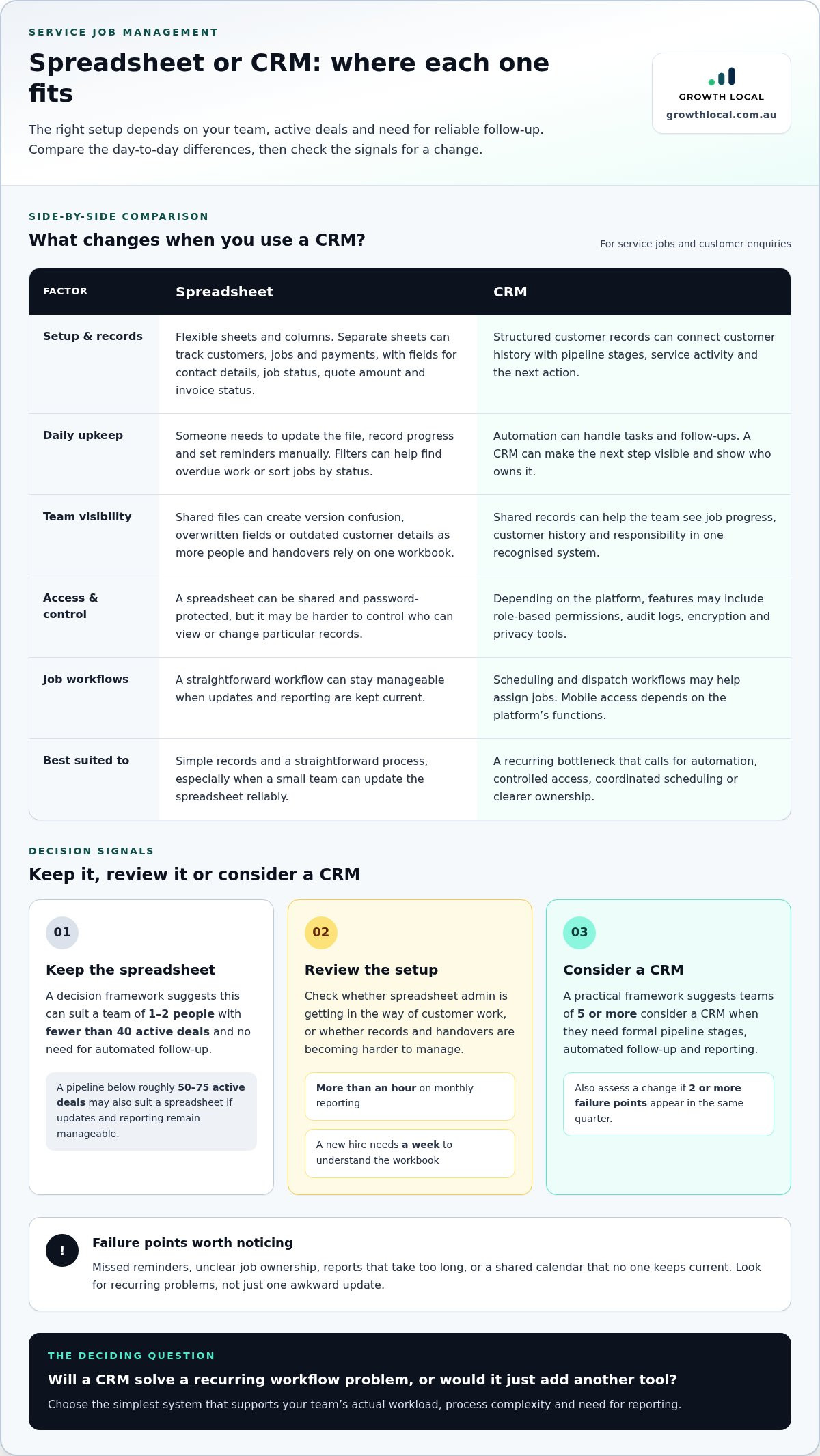
Choose a spreadsheet for simple records and a straightforward workflow. Choose a CRM when automation, controlled access or coordinated job scheduling can solve a real bottleneck.
Choosing a solution based on business size and complexity
A spreadsheet can work for a small team with a simple process, but growth adds to the workload. Compare active deals, reporting effort, follow-up reliability and how easily new staff can update records.
Signs to switch from spreadsheets
A switch makes sense when spreadsheet admin interferes with customer work or leads slip through without follow-up. A practical decision framework suggests teams of 5 or more people consider a CRM when they need formal pipeline stages, automated follow-up and reporting. Also consider a change if monthly reporting takes more than an hour, or a new hire needs a week to understand the workbook.
Look for repeated problems, not one awkward update. If 2 or more spreadsheet failure points appear in the same quarter, assess whether a CRM would solve them. Examples include missed reminders, unclear job ownership, reports that take too long, or a shared calendar that no one keeps current.
Outgrowing spreadsheets
Team size and deal volume help show when a spreadsheet has become hard to manage. One decision framework suggests teams of 1-2 people with fewer than 40 active deals can stay with a spreadsheet if they don’t need automated follow-up. A spreadsheet may also suit a pipeline below roughly 50-75 active deals, provided updates and reporting remain manageable.
As the process becomes more complex, a CRM can organise opportunities into stages, assign responsibility and show the next action. This matters when several staff members handle an enquiry or job. Before switching, write down your pipeline stages, ownership rules and the information each job needs.
Spreadsheet risks as a business grows
As a business grows, more people, records and handovers depend on the same file. Shared spreadsheets can lead to conflicting versions, overwritten fields and outdated customer details. If only one employee understands the workbook, the team depends on them to find records and explain how updates work.
Use these signals to decide whether the spreadsheet still fits:
- Keep it when one or two people manage a straightforward process and can update records reliably.
- Review it when reporting takes more than an hour monthly or onboarding takes a week.
- Consider a CRM when a team of 5 or more needs formal stages, shared reporting and automated follow-up.
Switching makes most sense when a CRM addresses a recurring problem, rather than simply adding another tool. Compare your current process with these signals, then choose the simplest system that supports your team’s actual workload.
Customer relationship management in spreadsheets and CRMs
Customer relationship management means keeping useful customer details and interactions together. A spreadsheet can organise basic records, while CRM software connects customer history with follow-up and service activity.
For Australian tax and record-keeping workflows, choose software that keeps invoice and payment information accessible alongside customer and job records. Xero-connected tools can link accounting workflows with customer information, but functions vary by platform.
Customer history and interaction records
A spreadsheet can record a customer’s name, contact details, job history and notes in separate fields. Formulas and filters can help find a previous service or sort customers by job status. But call notes, emails and meeting details may be kept elsewhere, leaving staff to piece together the relationship from multiple sources.
A CRM can keep calls, emails and meeting notes on one customer record. For example, a staff member can review an earlier service discussion before replying to a follow-up enquiry. Consolidated records can also support dashboards and scheduled reports, helping managers see customer activity without rebuilding the same summary manually.
CRM scheduling and service-job tracking
For service jobs, useful CRM features include customer records, job tracking, pipeline stages, responsibility fields and overdue-action reminders. A shared view can show who owns the next step, while scheduled activities help staff manage follow-ups and meetings. Unlike a spreadsheet, a CRM connects customer history with active work and upcoming tasks.
Before choosing software, map a typical job from enquiry to completion. Check that the system can show the customer, job stage, responsible person and next action together. Add scheduling or invoicing integrations when they support the actual workflow, rather than choosing features the team won’t use.
Australian tax and invoicing workflows require accessible invoice and payment information linked to the relevant job. A CRM can make those details visible alongside other business records, but it should support, not replace, your accounting process. Set clear fields for quote status, invoice status and payment updates so staff can find the right information.
CRM and field-service tools with Xero integrations can connect customer or job workflows with accounting records. The tools available and the information they transfer, such as contacts, invoices or payments, depend on the platform and its connections. A useful integration reduces duplicate entry while keeping job and accounting records aligned.
For spreadsheet-based customer relationship management, keep a consistent interaction log with fields for date, contact method, discussion and next action. Use formulas only for summaries the team understands, such as counting open jobs by status. If staff need a combined view of history, scheduling and job ownership, CRM software is better suited to that connected workflow.
Spreadsheet collaboration and version-control problems
One shared spreadsheet can work for basic coordination, but collaboration gets harder as more people update the same customer record. The key test is whether everyone can find current information and see who owns the next step.
Customer records and team collaboration
A shared workbook gives a team one place to record customer details, job status and pipeline updates. Clear columns for the record owner, latest action and next step help staff understand what’s happening without relying on a colleague’s memory. As more team members update the same spreadsheet, it can become less reliable as a tracking tool.
For example, a scheduler might change a job date while another staff member updates the customer record. Without a clear process, the team could miss the change or leave related columns out of sync. Agree who updates each field, use consistent status labels and assign someone to resolve conflicting edits.
A CRM lets multiple users access and update customer records in real time. That shared view can make job ownership and pipeline progress clearer, especially when staff work from different locations. Spreadsheet collaboration may still suit a small team coordinating simple updates in one controlled file.
Version conflicts and team permissions
Version confusion can start when staff save separate copies, email workbooks or overwrite static fields. One file might show a confirmed booking while another has the old date. Shared Excel workbooks can also become inconsistent when users edit the same information without agreed rules.
Editing at the same time adds risk: spreadsheet tracking can struggle with more than two team members, and concurrent editing by 2-3 people can make changes harder to manage. A CRM’s real-time record reduces reliance on separate file versions. It can also let an administrator configure permissions, giving each user access to all files or only selected records.
Set simple controls before adding more users. Give the recognised workbook a clear name, limit who can change key columns and keep a short log of important job updates. With a CRM, assign permissions by role and agree which fields each role maintains. These steps improve consistency, but a growing team may benefit from a central record with built-in access controls and visible ownership.
Lead capture and routing
An enquiry becomes a job when someone captures it, assigns ownership and follows up. For a growing service business, the choice between a spreadsheet and CRM often comes down to whether those actions happen reliably across marketing platforms.
With a spreadsheet, a staff member may need to copy a website enquiry into a row, add its source and assign someone manually. If a Facebook Ads enquiry arrives while the team is handling jobs, data entry may be delayed. When comparing a spreadsheet vs CRM for managing service jobs, consider whether a late update could leave a lead without an owner or follow-up.
A CRM can capture web-form leads automatically, route them to staff and trigger notifications. Depending on the platform, it can also assign an enquiry, create a reminder, send an approved follow-up email and connect with other business tools. This gives the team a defined path from first contact to next action.
Set routing rules before connecting lead sources. Decide which person handles each service type, location or enquiry category, then define what happens when a new lead arrives: assign an owner, create a follow-up reminder and record the source. Clear rules matter because automation can only follow the process you set up.
Use this simple workflow to check whether your current setup is holding leads:
- Capture: Record each enquiry with its contact details, service requested and marketing source.
- Route: Assign an owner based on your agreed service or territory rules.
- Track: Record the next action and update the lead’s stage as the conversation progresses.
A CRM can connect this process to website forms, Facebook Ads and other platforms. Check that the captured fields give your team what it needs to qualify and respond to an enquiry. Unnecessary fields can slow the handover, while missing details may mean staff have to chase information before acting.
Keep the spreadsheet if one person can reliably enter every lead, assign an owner and track follow-up. Consider CRM automation when leads arrive through several channels, handovers are shared or reminders often depend on memory. Revisit the spreadsheet vs CRM for managing service jobs decision as your lead sources and team workflow change. The right setup connects marketing activity to a visible next step instead of leaving enquiries in separate inboxes or sheets.
Growth Local: Lead Generation System Setup
Growth Local helps service businesses connect lead capture with a clear process for managing enquiries. Its Lead Generation System Setup supports businesses that need a more organised way to bring leads into their workflow, while CRM Setup helps structure customer records and follow-up steps.
This is a practical next step if enquiries arrive through different channels, staff aren’t sure who owns the next action or spreadsheet updates are slowing down lead handling. A Marketing System Setup can also align marketing activity with the process for managing incoming leads. The right setup depends on how your team captures, assigns and follows up each enquiry.
Contact Growth Local to discuss your lead management setup
Build a workflow that’s ready for what’s next
Make the spreadsheet vs CRM decision for managing service jobs part of a broader operational review. Map how an enquiry moves from first contact to completed work, then identify where information is delayed, duplicated or left without an owner. This gives you a practical starting point, whether you refine your current process or move to a new system.
Focus on how your team actually works. A useful setup should make the next action clear, keep customer information organised and support consistent handovers. Don’t add software features simply because they’re available. Choose changes that remove a real bottleneck and help staff do good work.
If you’re ready to plan a more organised lead and customer workflow, take the next step with Growth Local.
A clearer process gives your team more time to focus on customers and keep jobs moving.
Frequently Asked Questions
CRM vs spreadsheet: who wins, and why?
A CRM is a better fit when your team needs coordinated follow-up, shared customer records or clear ownership of each enquiry. A spreadsheet is simpler when one person manages a straightforward workflow and can keep the information current. For example, a solo operator tracking basic customer details may not need CRM features. Choose the tool that removes your biggest daily bottleneck, not the one with the longest feature list.
Can I still use spreadsheets alongside a CRM, or do I have to fully replace them?
Yes, you can use spreadsheets alongside a CRM for specific analysis, but give customer history and follow-up activity one primary home. For example, export CRM data to a spreadsheet for a one-off report, then keep the live customer record in the CRM. Maintaining both as equally current records invites conflicting updates, so define what belongs in each system and when to refresh the spreadsheet.
What if my team resists switching?
Start with the task causing the most frustration instead of moving every workflow at once. Ask staff to map a typical enquiry, then configure a test process around familiar stages and required fields. Have a team member demonstrate the steps using a real, non-sensitive example. Gather feedback, simplify confusing fields and explain which system holds the current record. Practical training can make the change easier to adopt.
At what exact company size or lead volume does a spreadsheet stop working as a CRM?
There’s no single cutoff, but useful guideposts include team size, active deals and process demands. A team of 1-2 people with fewer than 40 active deals and no automated follow-up can stay with a spreadsheet. Consider a CRM as the team grows to 5 or more people and needs formal stages, automation and reporting. A pipeline below roughly 50-75 active deals may still suit a spreadsheet if updates remain reliable.
Can I just add more structure to my spreadsheet instead of switching to a CRM?
A spreadsheet can remain useful with stronger structure. Set standard status labels, protect formula cells, assign an owner column and agree on how to record each update. For example, require every open job to show its next action and due date. If staff still need separate files, repeated manual reminders or lengthy reports, extra columns may add complexity without fixing the underlying workflow.
Does CRM software cost more than using free spreadsheets?
A CRM may involve a subscription cost, while a spreadsheet may cost nothing extra if your business already has access to the necessary software. Compare the ongoing CRM charge with the time staff spend entering data, preparing reports and chasing updates. Also consider setup, customisation and staff training. The better-value option depends on the work it removes and the functions your business actually needs.
How does CRM software compare to spreadsheets at a glance?
A spreadsheet offers flexible rows, columns and formulas for organising records or running simple analyses. A CRM structures customer records around interactions, ownership and follow-up tasks. For a quick comparison, assess who updates records, how staff see changes, how reminders are managed and how reports are prepared. If these steps rely on manual workarounds, a CRM’s connected workflow may be more useful.
What are the pros and cons of using a spreadsheet versus CRM to manage service jobs?
Spreadsheets are easy to adapt for a simple job list, but staff must maintain statuses, reminders and reports themselves. A CRM can connect customer interactions with job stages, responsibility and follow-up actions, but it requires setup and team training. For example, a business with changing job stages may find a structured pipeline clearer than a custom workbook. Choose based on the process your team needs to run consistently.


