

Integrating Online Bookings with a CRM for Smoother Scheduling
What if an online booking did more than fill a time slot? Integrating online bookings with a CRM connects each appointment to customer details, calendar availability and follow-up tasks, helping your team spend less time on admin and more time delivering service.
It’s frustrating when bookings sit in one system while customer history and conversations are scattered across others. A connected setup brings those details together, helps prevent calendar clashes and makes it easier to tailor appointments to the people who book.
This article explains how booking and CRM data work together, what calendar syncing and automated follow-ups can do, and why the benefits extend beyond scheduling. You’ll also learn how to assess software compatibility, data access and staff workflows so the process works smoothly for your business and customers.
Key Takeaways
- Connect appointments to customer profiles so staff can see relevant history and preferences when preparing for a booking.
- Sync availability across calendars to reduce clashes and make booking times clearer for customers.
- Map how booking details move between systems to keep records consistent and make reports more useful.
- Assess how well booking tools work with your CRM and other business software before settling on an integration approach.
- Set clear rules for customer data access and staff workflows to support a smoother rollout.
Appointment scheduling integrated with CRM customer data
Linking appointments to CRM records gives staff useful context before each visit. A service history, for example, can show what a customer discussed previously. Integrating online bookings with a CRM connects that history with the details submitted during booking.
A connected profile can bring together contact details, appointment history, preferences and past communication. Before a consultation, staff can see the service booked and notes from an earlier conversation, creating a more relevant experience without asking customers to repeat information. A CRM can also let customers choose a service or staff member during booking, then attach that choice to their profile. When integrating online bookings with a CRM, decide which profile details staff need before an appointment and which can remain out of view.
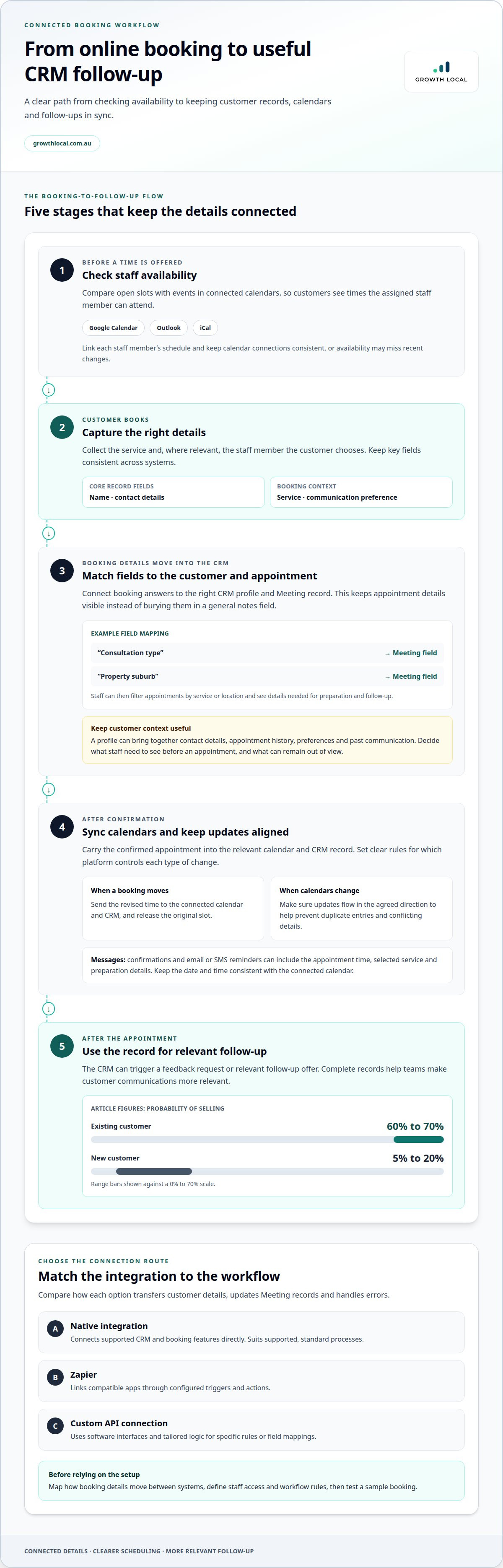
Incomplete records create problems beyond the appointment itself. A missing service preference or incorrect email address can lead to irrelevant marketing, duplicated messages or follow-ups sent to the wrong person. Keep key fields consistent, such as name, contact details, service booked and communication preference. For example, if a customer books a solar consultation, capture that service against their CRM profile rather than storing it only in a calendar note. The probability of selling to an existing customer is 60% to 70%, compared with 5% to 20% for a new customer. Useful records help teams make existing-customer communications more relevant.
Custom functions can handle integration workflows when a booking needs extra processing. A function can, for example, match a submitted service choice to the correct CRM field and create a related Meeting record. It can also apply rules, such as assigning a particular appointment type to the right team queue. This reduces manual copying and keeps information useful for customer service and marketing. Define the workflow clearly so each booking doesn’t become a separate manual task.
Mapping custom fields to Meetings
Mapping custom fields to Meetings means matching booking form answers to corresponding fields in a CRM Meeting record. This keeps service-specific details visible beside the appointment instead of losing them in a general notes field.
For example, a business could map “consultation type” and “property suburb” from its booking form to matching Meeting fields. Staff can then filter appointments by service or location, while the CRM keeps the details needed for preparation and follow-up. This makes appointment records easier for teams to use.
Comparing integration connection options
Native integrations connect supported CRM and booking features directly. Zapier links apps through configured triggers and actions, while a custom API connection uses software interfaces and tailored logic to exchange data between systems.
Choose the option that fits your workflow: native connections suit supported standard processes, Zapier can bridge compatible apps, and custom APIs can handle specific rules or field mappings. Compare how each option transfers customer details, updates Meeting records and handles errors. Then test a sample booking before relying on it.
CRM calendar availability checks and appointment syncing
A booking platform can check staff availability against a connected calendar before offering appointment times. Syncing confirmed bookings then helps keep the CRM and calendar aligned.
Checking calendar availability
Availability checks compare open time slots with existing events in a connected calendar. This helps ensure customers are offered times the assigned staff member can attend.
For example, a CRM scheduling tool can sync with Google Calendar, Outlook or iCal. When a staff member adds an event to their calendar, the booking platform can factor that into the appointment options it shows. A business with multiple staff can link each person’s schedule, then direct customers to suitable times. Keep calendar connections consistent across scheduling systems, or availability may not reflect the latest changes.
Once a customer books, appointment syncing carries the confirmed time into the relevant calendar and CRM record. Staff then have a shared reference point instead of copying details between systems. Decide which platform controls each type of change. If a booking is moved in the CRM, for instance, the connected calendar should receive the revised time, and vice versa. Clear update rules help prevent duplicate entries and conflicting appointment details.
Automated confirmations and reminders give customers a clear record of their booking. A confirmation can include the appointment time, selected service and relevant preparation details. An email or SMS reminder can prompt customers to attend or contact the business if plans change. Keep messages focused on the booking, and ensure the date and time match the connected calendar. After an appointment, the CRM can also trigger a feedback request or relevant follow-up offer.
Rescheduling should update the appointment everywhere it appears. If a customer changes the time through the booking platform, the revised booking can flow to the CRM and connected calendar, releasing the original slot for someone else. A clear rescheduling link in a confirmation or reminder makes the next step simple, while an automated notification lets staff know the schedule has changed.
Buffer times and recurring appointments
Buffer times reserve preparation or travel space around an appointment, while recurring appointments create a series of bookings at regular intervals. Both settings help match calendar availability to how a service is delivered.
For example, a business can add preparation time after a consultation or schedule repeat appointments for ongoing service. The booking platform should apply these rules when displaying available slots, not only after a customer books. This keeps the schedule workable and reduces manual calendar adjustments.
Clear calendar rules make each booking easier to manage. A connected scheduling workflow can bring availability, confirmations and changes into one coordinated process.
Appointment data synchronisation between systems
Synchronisation moves appointment and customer updates between a booking system and CRM. Decide which fields move, which system owns each change, and how staff will use the resulting data.
Automated data exchange
Automated data exchange transfers booking details between platforms when an appointment is created or changed. This saves staff from manually re-entering every update.
An integration can send a new booking to the CRM, then update its appointment record after a reschedule. An iPaaS, or integration platform as a service, can facilitate data exchange between applications. For example, a booking event can trigger a workflow to create or update a CRM record. Define what should happen when a customer changes their details or cancels, too.
Matching records is essential. A workflow can use a customer’s email address or an existing CRM identifier to find the right profile before creating another record. Without a matching rule, repeat bookings may create duplicate profiles. Set a clear process for incomplete details, failed transfers and conflicting updates. Staff should be able to identify the affected booking and correct its record.
Customer and booking data to sync
Choose fields that help staff manage appointments and continue customer relationships. Irrelevant fields add clutter, while missing details can disrupt service and follow-up.
For example, sync the customer’s name and contact details, appointment date and time, selected service, assigned staff member and booking status. Include cancellations and rescheduling so the CRM reflects the current appointment, not an outdated entry. If a form collects a service-specific answer, map it to the matching CRM field instead of leaving it only in the booking system.
Field selection should support a clear scheduling workflow. A status such as “confirmed,” for example, can distinguish an active appointment from a cancelled one. Keep the meaning of each field consistent across both platforms. If “service” means a booked service in the booking system but a sales category in the CRM, reporting and staff interpretation can become muddled. Document the field mapping and test a sample booking, change and cancellation.
Once records are consistent, booking reports can show booking rates, popular time slots and cancellation reasons. A weekly report can help a manager spot whether a particular time is often booked or cancelled. The team can then respond, perhaps by adjusting staff availability or reviewing how appointments are offered. Reports are more useful when records have consistent statuses, dates and service names.
Set access and use policies for shared customer data, and train staff to follow them. For example, specify which roles can edit contact details or view appointment notes. A defined process helps staff use synchronised records consistently and keeps customer information relevant to their work.
CRM and booking software integration
A useful integration connects appointment scheduling with customer records and the other tools involved in a booking. For Australian businesses, include consent, data access and the Australian Privacy Act in the design, and clearly explain what customer details are collected and shared.
Native booking and CRM integrations
A native integration is a built-in connection between a CRM and a booking tool. It matters because supported features can pass booking information directly between platforms.
Some CRM platforms provide booking pages or widgets for a business website, social media or email. The practical choice in Australia depends on whether the tools already in use support the required workflow. Check how each connection handles appointment details, customer records and changes. If a booking link sends customers to another system, preserve relevant session information so the booking can be associated with the right interaction.
Before implementing a connection, map the customer journey from booking page to CRM record. Decide where customers select a service, which system owns the appointment status, and how staff see updates. If the booking process also collects payment, define whether the CRM needs a payment status or only appointment information. A thorough design connects the steps without copying unnecessary data.
Integration costs in Australia
Integration costs cover the work and tools needed to connect booking software with a CRM. Understanding the factors helps you set a realistic scope before implementation.
Cost depends on software compatibility, field mapping, custom workflows, testing and ongoing maintenance. A native connection may require less tailored development than an API workflow with specific rules. Include any separate platform subscription or usage charges in your overall estimate, rather than considering setup work alone.
Security risks of connecting systems
Security risks arise when connected platforms share customer data or an integration grants access. Managing permissions matters because a compromised account or overly broad access can expose records beyond the intended workflow.
Limit integration permissions to the data and actions it needs. A booking workflow that creates appointments, for example, may not need permission to edit every CRM field. Use individual staff accounts where available, review access when roles change, and remove access that’s no longer needed. Document who can view, change or export customer data, then train staff on those rules.
Plan for errors and unexpected data changes, too. A failed transfer could leave an appointment in one system but not another, while duplicate records can expose details to the wrong workflow. Test a new connection with sample bookings, changes and cancellations. Monitor error notifications and review connected-system access as part of routine administration.
Which CRM and booking platforms offer native integrations in Australia?
Native integrations are built-in connections between a CRM and a booking platform, but the available features depend on the specific pairing. For Australian businesses, focus on whether the connection supports the whole booking workflow, not just whether two platforms appear together in an integrations directory.
There’s no single platform combination that suits every service business. Start by comparing the systems you already use with the information your team needs. Check whether a native connection can create and update customer records, pass appointment changes through, and trigger relevant confirmations or follow-ups. A connection that transfers only a customer’s name may not cover the operational work you need.
Review the integration details for each CRM and booking platform pairing. Look for functions such as embedding a booking widget, creating a booking page, syncing appointment details and updating cancellations. Some CRM platforms provide booking pages or widgets for websites, social media or email. That can simplify the customer journey, but booking information still needs to reach the right CRM record.
Compare options using a practical example: a customer selects a service, chooses a time and submits contact details. Check whether the native connection carries each choice into the CRM, links the booking to the right customer and updates the record if the appointment changes. If Google Calendar, Outlook or iCal is part of the workflow, confirm how calendar availability and appointment updates work alongside the CRM connection.
Consider how the connection handles your existing marketing and accounting tools, too. A booking system may connect directly to a CRM without passing the information your email marketing or accounting software needs. Map the journey from booking to customer follow-up, then identify where staff would otherwise copy details manually. This helps distinguish a useful native integration from a basic link between platforms.
Before committing to a workflow, test a sample booking from start to finish. Select a service, submit a test appointment, change its time, then cancel it. Check what appears in the booking platform, CRM and connected calendar at each step. Record missing fields, duplicate records or manual tasks. You’ll then have a clear basis for deciding whether the built-in connection supports your scheduling process or needs another approach.
Growth Local
Growth Local can help make booking data more useful by aligning your CRM, customer records and follow-up workflows. If appointments are spread across disconnected tools, CRM Setup can organise how booking information is captured and used. Marketing System Setup can connect relevant customer details to follow-up campaigns, keeping communications timely and useful.
This support is a practical next step when manual updates are slowing your team or booking details aren’t reaching the systems staff rely on. Workflows can be shaped around your business, from the information captured at booking to what happens after an appointment.
Contact Growth Local to discuss your booking and CRM workflow.
Make your next booking work harder
Treat each booking as the start of a useful customer journey, not just a calendar entry. Decide what should happen after someone books, changes an appointment or completes a service. That gives your team a clear purpose for integrating online bookings with a CRM and keeps the system focused on practical business needs.
Growth Local can help shape the connected workflows behind that journey. Lead Generation System Setup, CRM Setup and Marketing System Setup can support how enquiries, customer records and follow-up activity fit together. This is useful when disconnected processes create admin or make it harder to act on new enquiries.
Take the next step with Growth Local and build a booking process that gives your team more room to focus on customers.
Frequently Asked Questions
Are there any second-order benefits of having a client booking system?
Yes. Booking records can reveal patterns that inform decisions beyond scheduling. Recurring demand for a particular service, for example, may help with staff planning, while booking sources can show which campaigns attract appointments. Over time, a business can identify customers who haven’t returned and plan relevant follow-up. These insights depend on consistent booking details, such as service type, appointment status and enquiry source.
How does this integration work?
The booking platform captures a customer’s request, then passes selected information to the CRM through a built-in connection or integration workflow. The CRM uses rules to match details to an existing contact or create a new one. A completed consultation booking, for example, could trigger a task for a staff member to prepare a proposal. The exact workflow depends on the systems and the actions the business wants to automate.
What is CRM and booking software integration?
It’s a connection that lets booking software and a customer relationship management system work together. Unlike a booking link that simply sends someone to another page, an integration can make appointment information available in the business’s customer-management workflow. A team could, for example, use the CRM to see whether a new appointment relates to an existing sales opportunity, then decide on appropriate follow-up.
What key features are essential in client booking tools?
Look for a booking tool that lets customers choose the relevant service, complete a clear form and receive a useful confirmation. For staff, useful features include role-based access, cancellation handling, a mobile-friendly booking experience and reports filterable by service or appointment status. A salon may need customers to select a treatment, while a consulting firm may prioritise collecting background information before a meeting.
How do online booking systems integrate with CRM software?
Booking tools and CRMs connect through a native integration, an automation connector or a custom API, depending on the platforms and workflow. A booking can trigger a CRM action, such as adding an activity to a sales record or notifying the assigned team member. An initial enquiry appointment could create a follow-up task, while a returning customer’s booking could be attached to their existing account.
How to set up an online booking-to-CRM integration step by step?
Set it up in a sequence that reflects the real customer journey:
- Map what happens from booking request to staff follow-up.
- Choose which platform controls customer records and appointment changes.
- Match booking form fields to the CRM fields staff actually use.
- Set access permissions and the rules for existing contacts.
- Test a new booking, a changed booking and a cancellation before launch.
Document the workflow so staff understand what each automated action does.
How to prevent duplicate contacts and keep booking data accurate across systems?
Use a consistent identifier, such as an email address, to match bookings with existing contacts. Standardise how names and contact details are entered, then set a rule for missing or mismatched details. For example, send a booking with an unrecognised email to a review queue instead of automatically creating another contact. Periodic duplicate checks and clear ownership of record edits help keep customer data tidy.
How can businesses measure whether CRM-integrated online bookings improve conversions and retention?
Track the booking journey from enquiry to attended appointment, then compare it with your earlier process. Useful measures include enquiry-to-booking conversion, cancellation rates, repeat appointments and follow-up completion. Group bookings by enquiry source, for example, to see which campaigns lead to attended appointments, not just form submissions. Review retention by customer cohort over a consistent period, accounting for changes in campaign activity or service availability.


