

How to move sales data into a CRM and train your team
A spreadsheet can hold sales back well before it looks full. Moving from spreadsheets to a CRM for sales makes sense when several people need the same customer history, follow-ups are being missed, or the team can’t trust which file is current. A solo operator with fewer than roughly 50 active contacts and a straightforward sales process may still find a spreadsheet sufficient.
It’s easy to see why spreadsheets stick around: they’re familiar, quick to update and useful for a simple list. But when leads and conversations are scattered across rows, files and inboxes, tracking them takes time and opportunities can slip through.
This guide will help you recognise when a spreadsheet has become a sales bottleneck and move your data without carrying over the clutter. You’ll learn how to map and test an import, set up practical pipeline stages, train the team to use the CRM consistently and build reports that support clearer sales forecasts.
Key Takeaways
- Spot when missed follow-ups, outdated file versions and manual updates are slowing sales, and decide whether a spreadsheet still suits your process.
- Back up your spreadsheet as a CSV, clean the data and test a small import before moving active deals and contacts across.
- Build team confidence with short, practical training sessions and make the CRM the primary place for customer updates.
- Keep your pipeline clear with 5-7 stages, named next steps and reminders for follow-ups.
- Use CRM dashboards to monitor deal health and team activity, then make forecasts from current sales data.
CRM implementation and spreadsheet data migration
Plan your fields, clean the records and test the import before the sales team switches systems. A staged move protects customer history and gives staff one reliable place to track leads.
In Australia, CRM subscription and setup costs vary by platform, number of users, plan and the work involved in preparing data or connecting tools. Compare these factors instead of assuming every CRM uses the same fee structure.
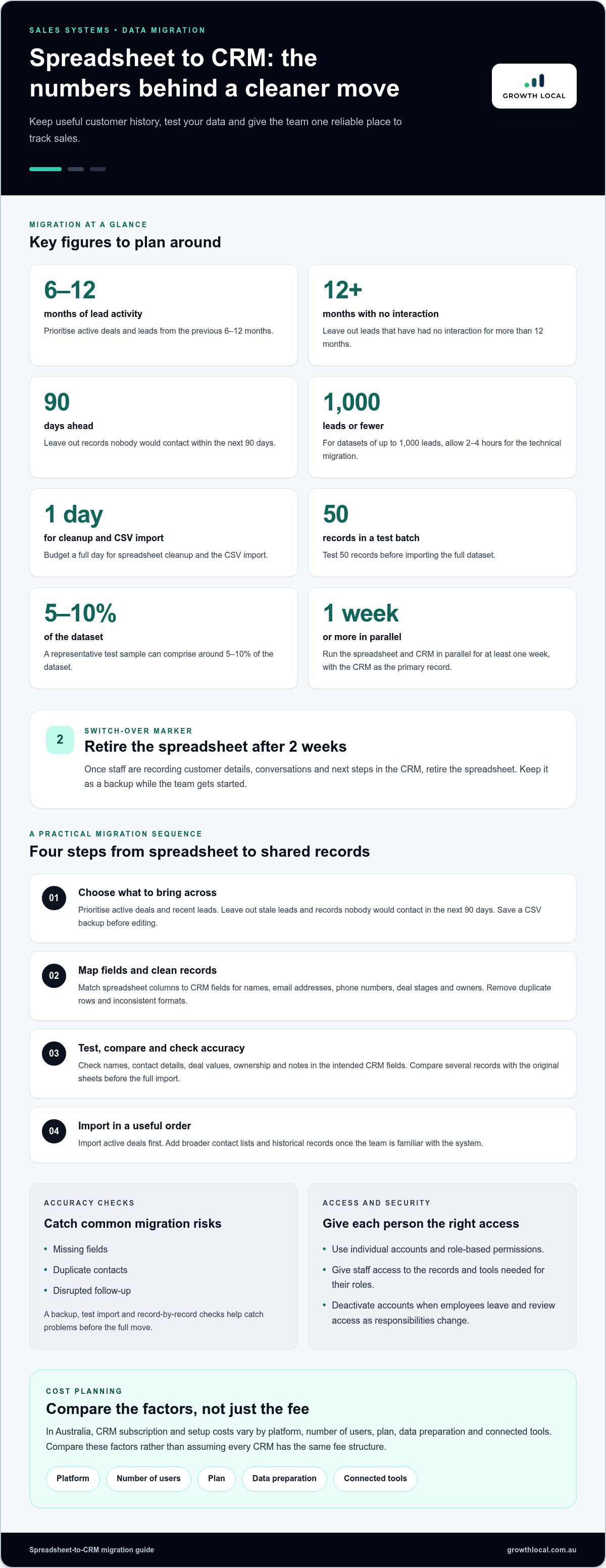
- Before importing, decide which records deserve a place in the CRM. Prioritise active deals and leads from the previous 6-12 months; leave out leads with no interaction for more than 12 months, and records nobody would contact within the next 90 days. Save a CSV backup of the spreadsheet before editing. This gives you a separate copy if fields are changed or records are lost.
-
Import customer data
Map each spreadsheet column to a CRM field before starting the import. Match names, email addresses, phone numbers, deal stages and owners to the right fields, and remove duplicate rows or inconsistent formats. Import active deals first, then add broader contact lists and historical records once the team is familiar with the system. For datasets of up to 1,000 leads, allow 2-4 hours for the technical migration; budget a full day for spreadsheet cleanup and CSV import.
-
Test imports and check accuracy
Test a batch of 50 records before importing the full dataset. Check that names, contact details, deal values, ownership and notes appear in the intended CRM fields, then compare several records against the original sheets. A representative test sample can comprise around 5-10% of the dataset. Migration risks include missing fields, duplicate contacts and disrupted follow-up; a backup, test import and record-by-record checks help catch problems before the full move.
-
Set data security and permissions
Set up individual user accounts and role-based permissions before inviting the sales team. Give staff access to the customer records and tools they need for their roles, rather than sharing one login across the business. Spreadsheets are easy to copy, download or share, with little control over where customer data ends up. A CRM can add another layer of security. Deactivate accounts when employees leave, and review access as responsibilities change.
Keep the spreadsheet as a backup while the team starts using the CRM. Run both systems in parallel for at least one week, but make the CRM the primary record so updates don’t get split across files. Retire the spreadsheet after two weeks, once staff are logging customer details, conversations and next steps in the new system. Many CRMs can import existing customer and job data, but careful field mapping makes those records easier to use.
Training the sales team and building buy-in
Train the team on real sales tasks, not every CRM feature. Use a clear rollout plan so staff know where customer updates belong and how shared records support their day-to-day work.
- Connect training to the team’s workflow. Start with the actions sales staff repeat: opening a prospect record, recording a conversation, updating deal status and assigning a next step. Show how these steps replace manual tracking across separate sheets. Use a familiar example, such as logging a call and recording the agreed follow-up, so staff can practise the same process they’ll use with customers.
-
Make the CRM the source of truth
Set a clear rule: customer updates belong in the CRM, not a private spreadsheet or email thread. One primary record lets colleagues see customer history, conversations and deal status without comparing file versions. Explain what each person must update after a customer interaction, and make shared access part of the team’s usual handover.
- Train in short, practical sessions. Break learning into 15-minute sessions over a week instead of one two-hour block. Each session can cover one task, such as updating a prospect or recording a next action. Ask staff to complete the task themselves, then resolve questions using a real sales scenario. This keeps training focused and gives people time to apply each skill between sessions.
-
Support sales team scalability
Build consistent CRM habits across the team before sales activity grows. Shared customer records let a colleague pick up a conversation with its history and current deal status, rather than relying on one person’s memory. Standard fields and regular updates also help managers understand workloads and give new staff an established process instead of passing around individual spreadsheets.
- Reinforce the routine during the first month. Treat the first 30 days after switching as a key period for establishing regular use. Hold daily 10-minute check-ins during the first week, asking what staff entered, where they got stuck and which updates remain outside the CRM. Keep the discussion practical, then adjust instructions when the same issue appears across the team.
- Make adoption visible without turning it into busywork. Agree on a simple team expectation: update the record after a meaningful customer interaction, and leave a clear next step. Reinforce that routine consistently for 3-4 weeks, while managers model it in their own records. When staff see the CRM helping colleagues share context and continue conversations, buy-in becomes part of the team’s working habits.
Sales dashboards, reporting and forecasting
Set up reports to answer the questions your sales team and managers need to act on. A useful dashboard turns current CRM records into a clear view of opportunities, deal progress and areas needing attention.
- Choose the questions your reports must answer. Start with practical decisions: which opportunities need follow-up, where deals are slowing down and how much work each salesperson has. Use those questions to choose the CRM fields and report views that matter. If managers need to see deal status, for example, every active opportunity needs an accurate stage and a clear owner.
-
Review sales reporting and analytics
Build a dashboard that brings together deal status, ownership and recent activity. CRM reports can help you understand sales operations, while a dashboard can highlight at-risk deals and team performance before end-of-month reporting. Make sure the records behind each view are complete and current. If a salesperson logs a customer interaction but doesn’t update the opportunity, the dashboard may give managers an incomplete picture.
- Keep the dashboard focused. Show managers the most useful information at a glance instead of filling the screen with every available chart. A view of open opportunities by stage, owner and next action can prompt a clear decision: follow up, provide support or review a stalled deal. Keep detailed analysis in a separate report when it doesn’t support immediate sales management.
-
Use reporting for forecasting
Use CRM reports and analytics to support sales forecasting, then review the underlying opportunities before making decisions. Check each deal’s current status, latest customer interaction, expected next step and responsible salesperson. Outdated records can distort a forecast, so make regular updates part of the sales routine. Treat the report as a structured view of current opportunities, not a substitute for sound judgement.
- Improve the data behind each report. Use consistent field names and formats so reports group records correctly. For instance, if deal source appears in several spreadsheet columns, decide how the CRM should capture it in one field. Clear categories make it easier to compare opportunities and spot patterns without manually combining reports. Review the available columns with the team and remove fields that don’t support a real reporting need.
- Turn report findings into actions. When a dashboard flags an at-risk deal, assign an owner and record the next step in the CRM. If a report shows opportunities without recent activity, discuss those records in a sales review and agree on follow-up. Then check the same dashboard after updates. This links reporting to team action and gives you a clearer view of the pipeline.
Setting up CRM pipeline stages and automations
For an Australian small business, useful CRM features include a sales pipeline, clear ownership, follow-up reminders and reports. Depending on the platform and plan, automation and integrations can also reduce repetitive data entry.
-
Set up CRM pipeline stages
Map the steps a lead actually takes, from new enquiry through to won or lost. Start with no more than 5-7 stages, and give each stage a clear meaning that every team member can apply consistently. For example, define when an opportunity moves from “contacted” to “quote sent”. Avoid stages that don’t trigger a decision or next action.
- Assign responsibility at each handover. Make sure every opportunity has an owner and a visible next step. When a new enquiry arrives, assigning it to a salesperson gives someone clear responsibility for the first response. If a deal changes hands, update its owner and record the reason. This keeps the pipeline useful for the person doing the work and the manager reviewing progress.
-
Automate sales workflows and reminders
Automate a task only after the team agrees on the workflow. For example, a new enquiry could create a reminder for its assigned owner, while a change in deal stage could prompt an approved follow-up email. Depending on the platform and plan, CRM automation can assign enquiries, create tasks, send approved emails and connect business tools.
- Test each trigger before relying on it. Use a test opportunity to check what happens when a lead arrives, changes stage or needs follow-up. Confirm that the reminder reaches the correct owner and the email uses approved wording. Keep the process simple at first. Too many automated actions can create duplicate tasks or messages, making it harder for staff to tell which step matters.
-
Set up interaction logging
Make recording calls and customer interactions part of the workflow, so the next person can follow the conversation. A CRM call log can be quick to enter. Capture the outcome, key customer detail and agreed next step, rather than a long transcript. Check that team members can find this information on the relevant contact or opportunity record.
- Connect tools only where they reduce double-handling. Identify where staff copy information between marketing systems, email and the CRM. An integration can help these tools share relevant details, while automation can reduce repeated spreadsheet updates. Test that information reaches the correct record without creating duplicates. Keep manual updates available for exceptions, such as a referral that needs extra context.
- Review the workflow with the team. Walk through a real enquiry from arrival to outcome. Check that the pipeline stage, owner, reminder and interaction history match what happened. If staff can’t tell what to do next, refine the stage definitions or automation. A clear setup gives salespeople a reliable process and managers a consistent view of opportunities.
Recognising when spreadsheets are holding sales teams back
Judge a spreadsheet by the sales work it supports, not how familiar it feels. It can still be useful for quick analysis or a temporary list, but becomes less practical when the process needs shared structure and consistent follow-through.
- Check whether the spreadsheet suits the job. A simple sales process with around six prospects over six months may be manageable in a spreadsheet. A temporary list or one-off analysis can also be a good fit. The warning sign is using the same file as the permanent record for every customer, conversation and sales decision as the business grows.
- Notice when the process changes faster than the file. If each new sales step requires another column, formula or special instruction, the sheet may be difficult to maintain. For example, adding a qualification step can leave staff unsure where to record progress. Note the workarounds the team relies on, then decide whether the spreadsheet still reflects the real sales process.
- Look at how the business is organised. A business managing 500 customers across multiple departments may find that separate sheets and email chains make coordination harder. Check whether staff can explain where a sales decision is recorded and how another department gets the context it needs. If the answer depends on a person remembering to forward information, the process has a weak handover point.
- Watch how easily useful prospects get overlooked. A promising lead can sit three hundred rows down a spreadsheet, far from the work happening today. Check whether staff can quickly identify prospects needing attention without scrolling through unrelated records. If finding the right opportunity depends on remembering a name or search term, reconsider how the team surfaces active sales work.
- Keep spreadsheets where their strengths matter. Spreadsheets work offline and can help teams test an idea before committing to a process. Use one to trial a new qualification format or analyse a small, temporary dataset. Once staff need that process to manage ongoing customer relationships, keep what you’ve learned and move the sales workflow into a more suitable system.
- Make the decision based on recurring friction. List the problems staff encounter, such as unclear ownership, hard-to-find leads or a process that changes at every handover. Then ask whether the spreadsheet helps the team act on opportunities or simply record them. A switch makes sense when the file’s limitations repeatedly interrupt sales progress.
Growth Local: Lead Generation System Setup
Growth Local connects lead generation with the systems your sales team uses to manage enquiries. Its Lead Generation System Setup and CRM Setup can create a clearer path from incoming lead to organised customer record. Marketing System Setup can also bring marketing activity into the wider process.
Turn to Growth Local when spreadsheet tracking makes it harder to manage new enquiries, assign follow-ups or see how leads move through your sales process. A practical setup starts with your current workflow, the information your team needs and the steps to take when an enquiry arrives. The result is a system shaped around how your business handles sales, rather than more disconnected admin.
Contact Growth Local to discuss your lead generation and CRM setup.
Build a sales process that can grow with you
A CRM is more than a place to store contacts. It gives your team a shared structure for turning each enquiry into a considered customer experience. As you move from spreadsheets to a CRM for sales, use the change to clarify how your business will handle new leads, handovers and customer conversations as it grows.
Before making your next move, choose one sales process to improve first. Map what happens from the first enquiry to the next meaningful customer decision, then make sure the team can follow that process in the CRM. Starting with one focused process gives you room to learn, adjust and build better habits without changing every part of the business at once.
Your system should support the way you want to sell, not create another admin burden. When you’re ready, take the next step and shape a setup around your team and goals.
With a clear process and a team that uses it consistently, you’ll be in a stronger position to make growth manageable.
Frequently Asked Questions
How can you tell when spreadsheets are holding your business back?
Check whether the spreadsheet supports the decisions your team needs to make. Ask a salesperson to explain a customer’s current position, why they’re interested and what would move the conversation forward. If the file records activity but doesn’t help staff choose a useful next action, it may no longer suit the sales process. Compare answers across team members to see whether everyone interprets the information consistently.
When is the right time to move from a sales spreadsheet to a CRM?
Move when you can describe a repeatable sales process that would benefit from shared records and clear responsibility. For example, if an enquiry passes from a marketing role to a salesperson, decide what information each person needs at that handover. A CRM works best when it supports defined tasks, rather than being expected to fix unclear processes by itself. Map the handovers and decisions first, then assess whether a spreadsheet can still support them.
How long should you allow for CRM implementation?
Plan around the work required to shape the system, rather than treating the data import as the entire project. A four-week migration plan can place the full switch and spreadsheet retirement in Week 4. The earlier work can cover process decisions, configuration and preparation. The timing depends on how much needs to be decided and connected, and how much practice the team needs before using the CRM for everyday sales.
Is a CRM more secure than a spreadsheet?
A CRM can add another layer of security, but the software alone won’t keep customer information safe. Review how your business handles account access, exports and staff departures. For example, decide who removes access when someone leaves, and make sure staff use individual accounts. Consider how customer details are handled outside the CRM too, since copying records into unsecured files can weaken your controls.
What is CRM?
CRM means customer relationship management. It describes both the approach and the software a business uses to organise relationships with prospects and customers. A system can connect information such as who a customer is, what they’ve discussed with your team and which sales opportunity relates to them. This gives staff a working customer record, rather than unrelated contact details and notes.
What are the benefits of moving sales data from spreadsheets to a CRM?
A CRM can help you understand how prospects move from first enquiry to a sales outcome. If records consistently capture where leads came from and what happened next, reports can show which sources produce meaningful opportunities. This gives managers a better basis for reviewing sales activity and deciding where to focus. The benefit depends on collecting useful, consistent information, not simply transferring every spreadsheet field into the new system.
How do you migrate sales data from spreadsheets into a CRM step by step?
Plan the migration around relationships between records, not just rows. Identify how a business, its contacts and its sales opportunities connect, then decide how to represent those links in the CRM. For example, one organisation may have several contacts and separate opportunities. After import, check that staff can move between related records and understand their context, rather than treating each contact as an unrelated lead.
How do you clean and prepare spreadsheet data before CRM migration?
Agree on what each field means before cleaning its contents. If staff use “qualified” differently, settle on a shared definition and decide which existing records meet it. Review free-text notes too: retain context that helps the next sales conversation, and remove internal shorthand another team member can’t interpret. Clear definitions help the CRM reflect the business’s real sales process instead of carrying inconsistent assumptions into the new system.


