

How to clean customer data for CRM migration
A CRM migration won’t tidy up messy customer data. It can carry duplicate contacts, inconsistent fields and disconnected records into the new system, so clean the data before moving it. To understand how to clean customer data before CRM migration, define which records belong, assess their quality, resolve duplicates, standardise and validate fields, then test a representative sample.
It’s tempting to focus on transferring records quickly, but reliable information is what makes a new CRM useful for sales, service and reporting. A clear process reduces avoidable errors and helps your team find the right customer details after cutover.
This guide covers a seven-step cleanup, from profiling and record selection to testing sample data and checking relationships. You’ll learn how to set migration rules, handle likely duplicates without losing useful history, and assess whether records are ready to move.
Key Takeaways
- Set migration scope and record-selection rules first, so effort goes towards data that will actually move.
- Profile records for gaps, invalid details and outdated information before deciding what needs attention.
- Use more than exact matches to find likely duplicates, then apply clear rules to preserve useful details and history.
- Standardise fields such as phone numbers, addresses and categories to make records more consistent and usable.
- Test a representative sample in the destination CRM, checking field values, relationships and reports before the full migration.
Defining migration scope and record-selection rules
Clean the records selected for migration, including customer and company details, ownership, activity and links between records. First agree what will move, then set rules for keeping, merging, excluding or deleting each record.
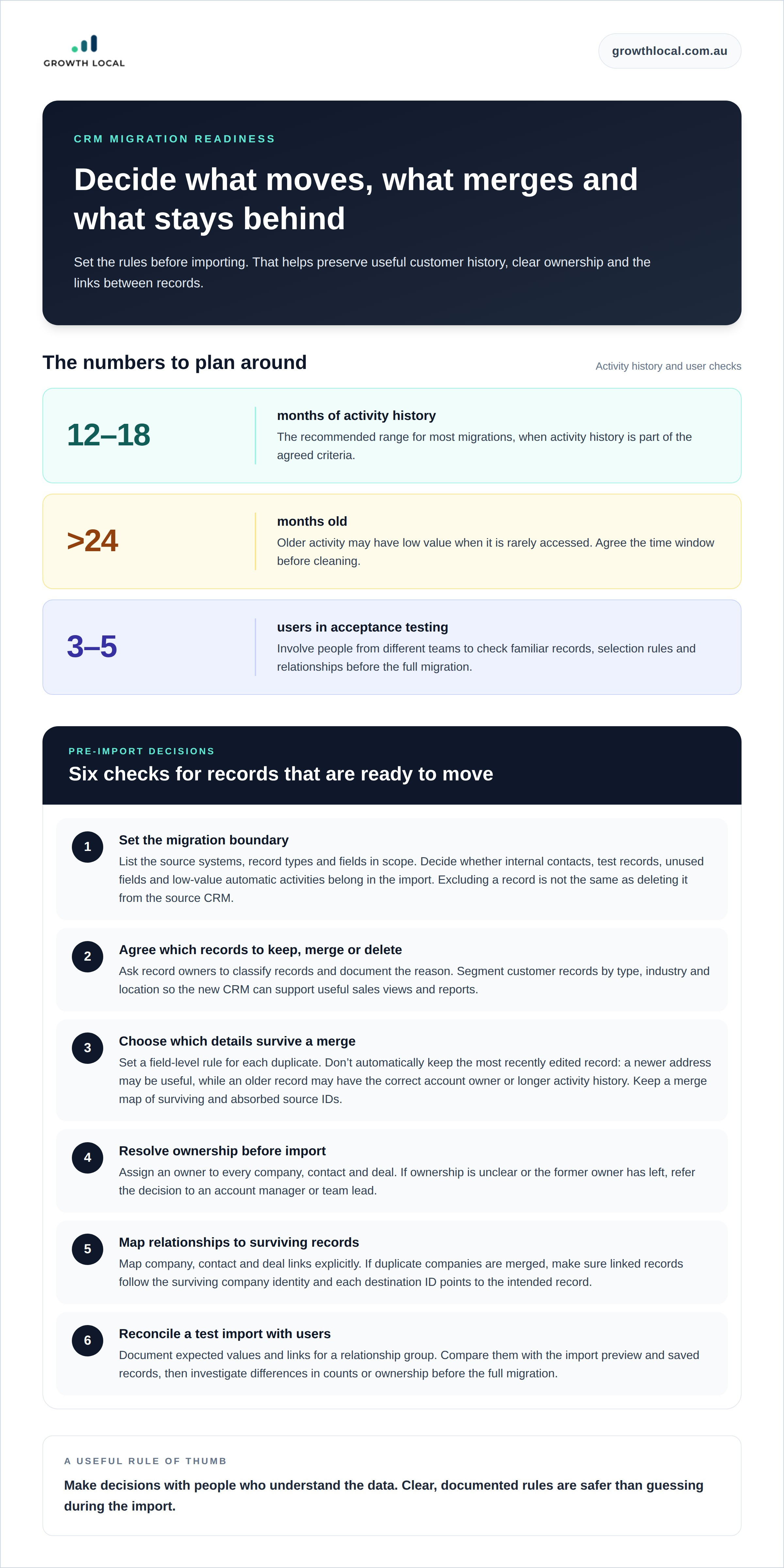
- Set the migration boundary. List the source systems, record types and fields included in the import. Segment customer records by type, industry and location so the new CRM can support useful sales views and reports. For example, decide whether internal contacts, dummy companies, test records, unused fields and low-value automatic activities belong in scope. Excluding a record from the first import is different from deleting it from the source CRM.
- Agree record-selection criteria with record owners. Have owners classify each record as keep, merge or delete, and document the reason. If activity history matters, define the time window before cleaning. A migration may include records with activity in the past two years when that is part of the agreed criteria. The recommended activity-history range for most migrations is 12-18 months; activity more than 24 months old may have low value when rarely accessed.
- Set a field-level survivorship rule for each duplicate. Don’t choose the surviving record simply because it was edited most recently. A newer address may be useful, while an older record holds the correct account owner or longer activity history. Ask people who understand the data to settle these business decisions. Record which field wins, such as the verified billing address, and retain the surviving record ID alongside every absorbed source ID in a merge map.
- Resolve ownership before the import. Assign an owner to every company, contact and deal. When ownership is unclear or the former owner has left, send the decision to an account manager or team lead rather than assigning it automatically to the migration operator. This gives each record a clear point of responsibility in Salesforce or another destination CRM.
- Map relationships through surviving identities. If duplicate source companies are merged, records linked to an excluded company must follow the surviving source identity to the destination company ID. Map company, contact and deal relationships explicitly, then check that each destination ID points to the intended record. This prevents a clean contact record from becoming disconnected after import.
- Reconcile a test import with users. Before importing a relationship group, document expected values and links. Compare them with the import preview and saved destination records, then investigate differences in counts or ownership. In user acceptance testing, involve 3-5 users from different teams. Their checks of familiar records help confirm the selection rules, relationships and accuracy before the full migration.
Why Is CRM Data Cleaning Important?
- Start with the reports the new CRM must produce. List the decisions those reports should support, such as which leads need follow-up or which customers have not ordered in twelve months. Work backwards from each report to identify the fields it needs. A report grouped by industry needs a usable industry value on relevant company records, not inconsistent free text.
- Set required fields before mapping begins. Decide which information each record type needs for the new system’s workflows and reporting. For example, a sales team may need a company name, contact details and an owner to follow a lead. Keep the required list focused: importing optional fields with unreliable values can make records harder to use without improving the report.
- Document source-to-destination field mapping. For every source field, record its destination field and whether the data will be combined, split, reformatted or left behind. A source field called “Full name” might need separate first-name and surname values in the destination CRM. Map fields to their actual purpose, rather than matching labels alone, so the import doesn’t place data in the wrong place.
- Correct misplaced values before the import. Check examples where a field’s contents don’t match its intended meaning. A phone number stored in a notes field, or a job title entered as an industry, can distort search results and reports. Set the correct destination field and handle each affected record consistently. This gives the migration partner a clear transformation rule instead of a case-by-case guess.
- Standardise formats across every relevant record. Agree one format for phone numbers, postcodes, dates, addresses and job titles. For Australian phone numbers, choose a consistent international dialling code format, then remove spaces and hyphens if that is the agreed import format. Apply the same date structure to all records; mixed formats can make dates ambiguous and disrupt sorting.
- Map categories to closed option lists. Set approved values for country, region and industry rather than importing variations as free text. For example, “NSW”, “New South Wales” and “N.S.W.” should map to the same destination option if they represent the same region. Apply the same approach to company names and other categories, then check how mapped values appear in reports. Plan around the reports needed a year from now, not just the initial import. Otherwise, inconsistent fields can keep the same problems visible six months after migration.
Preventing duplicates and maintaining data quality
A CRM professional identifies potential duplicates across systems, checks whether they represent the same customer, then merges approved matches before import. Names alone aren’t enough: email addresses, company domains and record history offer stronger clues.
- Set matching rules before reviewing candidates. Define which fields can suggest a match and which combinations need human review. A shared email address may indicate two contact records belong together, while a shared company name alone may not. Treat names as clues, not merge decisions, and avoid grouping companies by generic email domains such as Gmail or Hotmail.
-
Match records across source systems
Compare records from each source system before loading them into the destination CRM. Use company domains and people’s email addresses to find likely matches, then review names, phone details and company information together. Exact matches can miss spelling or formatting differences, so include fuzzy and phonetic matching. If records appear to match but key details conflict, keep them separate until someone resolves the difference.
- Review each likely duplicate as a candidate. Check whether the records share meaningful identifiers, not just similar names. “Coastal Plumbing” and “Coastal Plumbing Services” could refer to the same business, but a shared word doesn’t prove it. Compare contact details, company domain and recorded activity. Mark uncertain pairs for review rather than merging them and risking a false match.
-
Use duplicate detection and merge records
Use HubSpot duplicate detection to identify candidate records, then review each suggested match before merging. Confirm the records represent the same person or company, and choose values that preserve the most complete details and activity history. Don’t assume a tool can make every business decision correctly. Record source IDs and merge outcomes so the team can trace changes during migration testing.
- Match shared records in a staging environment. When records come from multiple source systems, compare them before import or merge them in staging. That lets the migration team resolve overlapping customers before the destination CRM receives its first load. For example, a contact in a marketing database and a sales CRM may be the same person, even if their phone formatting differs.
- Keep data quality rules active after the merge. Use required form fields, closed lists, validation rules and normalisation workflows to reduce inconsistent values entering the CRM. Schedule duplicate reviews as records accumulate. These controls help stop the same spelling variations and incomplete details from creating fresh duplicate candidates after the migration is complete.
Profiling and assessing CRM data quality
Profile the records before cleanup to identify where accuracy breaks down. The results show which validation rules and follow-up decisions matter before import.
-
Classify data quality problems
Group each issue by type before deciding how to fix it. The Government Data Quality Framework identifies completeness, uniqueness, consistency, timeliness, validity and accuracy as data quality dimensions. For example, a missing email is incomplete, while an address in an outdated format is inconsistent. Record the affected field, object and proposed action so teams can distinguish a correction from an archive decision.
-
Profile data with automated checks
Profile each relevant object and field, then compare record counts, field completion, distinct values and frequent values. Flag potential duplicates, invalid email addresses, unverified phone numbers and orphaned relationship links. An automated check can find blank company names, but a person should assess whether a record can be matched or needs an exception. Repeat the checks after cleanup to see what changed.
- Set a baseline for each important field. Compare the current values with the agreed format and intended use. For example, count contacts without an email address and identify company records with several different industry labels. Review the same measures after each cleanup pass. That gives the migration team a practical way to spot whether a fix improved completeness or simply moved the problem into another field.
- Validate details and relationships. Check email addresses and phone numbers before migration, then confirm linked contacts, companies and deals point to valid records. A contact with a company name but no connected company record may appear complete in a spreadsheet, yet remain disconnected in the CRM. Flag those orphaned links for resolution, and retain unresolved exceptions for review rather than silently dropping relationships.
- Separate stale records from archive candidates. A CRM audit can flag records with no activity in 18-24 months as stale. That’s a review signal, not an automatic deletion rule. Check whether the record supports an active relationship, a report or a future decision before recommending an archive. Set access arrangements for archived data, including who may retrieve it and how quickly it may be needed.
- Keep validation checks running after go-live. Use required fields, closed lists and validation rules at data entry to catch gaps early. Schedule automated data-quality checks for issues such as blank fields, invalid contact details and inconsistent categories. Review results regularly, assign exceptions to an owner and update the rule when a recurring problem appears. This helps prevent familiar data issues from returning after migration.
Testing migration with a sample dataset
Run a trial import before moving the full dataset. If you’re learning how to clean customer data before CRM migration, a sample load shows whether the cleaned records behave as expected. Test records, relationships and update behaviour in a safe environment before cutover.
-
Test trial, delta and cutover loads
Load a copy of the cleaned data into a test environment, then compare expected and actual record counts. Test a delta load for records changed since the trial, and plan a short cutover window for the final load. Check how the import handles an empty cell, an added value and a value intended for removal. Don’t assume an update will behave as expected.
-
Use migration checklists for testing
Use a checklist for each test run, covering field contents, record relationships, counts and import errors. Confirm that addresses and contact details land in the intended fields, and that company and contact records remain linked. Compare expected totals with successful, failed and partial migrations. Keep migration reports to help investigate differences between the source and destination.
-
Test migrated data in UAT
Review the test load in a user acceptance testing environment before production. Check a random sample of 50-100 records per object type against source records, including field values, links and familiar workflows. A representative sample helps users inspect real examples without manually reviewing every record. Also test reports and dashboards that rely on migrated data, since incorrect fields can affect their results.
- Investigate count differences before sign-off. Compare source and destination totals for each object, then account for records intentionally excluded or merged. A record-count discrepancy greater than 0.1% requires investigation before go-live. Use migration reports to locate failed or partial records, then correct the mapping or source data and run the test again. Don’t treat a matching total as proof that every relationship is correct.
- Record outcomes and approve the cutover plan. Document test results, outstanding exceptions and the person responsible for each decision. Confirm that the final load uses the same transformation rules as the successful trial. This testing is a practical part of how to clean customer data before CRM migration, giving teams a reference if customer records appear different after moving. Keep the cutover sequence and rollback decisions documented.
Growth Local
Growth Local helps businesses connect a well-planned CRM setup with the way their teams manage customer relationships. If your migration involves several data sources, unclear field mapping or a new system that needs to support sales and marketing workflows, Growth Local’s CRM Setup can help put the destination platform in context. This creates a clearer fit between your records, processes and reporting needs, rather than treating the import as a standalone technical task.
Bring your migration requirements, key workflows and reporting priorities into the conversation. Growth Local can discuss how CRM Setup or Marketing System Setup fits the broader system you’re building. Contact Growth Local to talk through your plans.
Make the next CRM move count
A migration is a chance to make customer information work harder, not just move it to a different system. Once the new CRM is live, the way your team captures and updates details will shape its usefulness. Clear processes help keep data practical as your customer base and marketing activity grow.
Knowing how to clean customer data before a CRM migration is a strong starting point. The next step is making sure the new setup supports how your business manages customer relationships and future leads. Growth Local’s Lead Generation System Setup can complement a well-planned approach to customer data.
Share your migration plans and priorities with Growth Local to discuss CRM Setup and Lead Generation System Setup for your business.
A considered start gives your team a clearer foundation for the next steps.
Frequently Asked Questions
What is CRM migration?
CRM migration means transferring customer and business information from one customer relationship management system to another. It can also involve moving data from spreadsheets or several connected systems into a new CRM. Beyond the records themselves, the work may include transferring activities, ownership and links between companies and contacts. The aim is to make the information usable in the new system’s fields and workflows.
First, Why Clean Your CRM Database?
Clean the database first because outdated or misplaced details can lead to poor decisions in the new CRM. For example, a sales team might contact an old number or rely on a report that groups customers incorrectly. Cleaning also gives staff a clearer starting point for updating records. The specific focus depends on how the business uses its CRM, including which teams rely on its data and reports.
How long does it take?
A small CRM migration with under 25,000 records, standard objects and limited integrations can take 4-6 weeks. A mid-market project involving 50,000-500,000 records, multiple object types and five or more integrations typically takes 2-4 months. Enterprise migrations with complex custom objects, large datasets and many connected systems can take 4-9 months. Data condition, scope and testing needs all affect the timeline.
Is information lost when merging duplicates?
Information can be lost if duplicate records are merged without reviewing their fields and history. Before merging, decide which values to keep when records disagree, such as different phone numbers or job titles. Record the source IDs and merge outcome so changes can be traced. If a match is uncertain, hold the records for review rather than combining them and risking the loss of useful customer context.
What about data protection?
Include only the records and fields needed for migration, and restrict access to customer data to people involved in the work. Preserve unsubscribe status, subscription preferences and evidence of when and how consent was given. Keep the original export secure and maintain a clear record of changes. These practices help teams handle customer information deliberately, without assuming every field or historical record belongs in the new CRM.
How does a CRM professional correct or remove invalid emails, phone numbers and postal addresses?
A CRM professional uses validation checks to flag malformed or incomplete contact details, then separates confirmed corrections from unresolved records. For example, don’t guess the missing digits in a phone number. Compare the information with reliable source records or place it in an exception queue for the business to resolve. Records with unusable details can be excluded under the agreed selection rules.
How does a CRM professional standardise customer names, addresses, dates and other fields for CRM migration?
A CRM professional sets consistent rules for each field and applies them across the selected records. For names, that might mean separating first and last names while preserving a company’s full registered or trading name in the correct field. Addresses, dates and phone numbers also need agreed formats. Retain original values where needed for traceability, rather than silently replacing details that could carry meaning.
How does a CRM professional map and validate source data against the new CRM fields?
A CRM professional creates a field map showing where each source value belongs in the destination CRM and what transformation it needs. For example, a source status such as “Prospect” may need to match an approved destination option. Test the mapping with sample records, then check for misplaced values, rejected options and missing relationships. Clear exception reports help the business decide how to handle records that don’t fit.


