

How Technicians Can Use CRM With Shared Customer Data
Technicians are more likely to use CRM software when it helps them do their jobs, rather than adding another admin task. To understand how to get technicians to use CRM software, give them shared customer profiles, simple data entry and mobile access to the information they need on site. Make the practical benefit clear: less time chasing details and smoother handovers between the field and office.
A CRM should earn its place in a busy service business. This article explains how to create customer records that are useful in the field, simplify updates with checklists and drop-down menus, and build mobile access into everyday workflows. You’ll also see how to involve technicians in choosing and configuring the system so it supports real jobs instead of becoming another box to tick.
Key Takeaways
- Build shared customer profiles with contact details, site information and asset records so technicians and office staff can work from the same picture.
- Use checklists and drop-down menus to make CRM updates quicker and reduce the chance of missing useful details.
- Give field teams mobile access to customer information, then make it easy to record updates while work is under way.
- Show technicians how accurate CRM data supports smoother handovers, more relevant customer contact and better business planning.
- Involve technicians in choosing and configuring the system, and focus the rollout on the features they need for their day-to-day work.
1. CRM customer profiles and shared customer information
A useful CRM profile gives office staff and technicians a shared, reliable view of each customer relationship. Start with the customer’s name, phone numbers, email address and site address. Record on-site assets too, including each item’s manufacturer and model. For example, a technician attending a service call can check which unit is installed before arriving, rather than asking the customer to repeat the details.
Keep the profile current throughout the customer relationship. After a site visit, update the asset record if a part or model has changed, and add the job outcome to the customer’s history. Correct contact details when an email address or phone number changes. These updates give the next technician useful context, help office staff respond consistently and support better customer service.
Technicians need mobile access to the relevant customer and asset information the office uses. A clear record can show the site address, previous work, known equipment and recent customer communications. Set up profiles so technicians can find job history quickly, then record new findings against the right customer and asset.
CRM dashboards can be customised to show useful business information, such as open jobs, recent customer activity or records needing attention. Integrations matter too: connect everyday tools, such as email and reporting applications, where they support the workflow. Only 29% of applications used by the average organisation are integrated, so disconnected systems can leave staff working with incomplete customer information.
For Australian businesses, privacy matters when customer details are stored or shared. According to the Office of the Australian Information Commissioner, Australian privacy law generally bars using or disclosing personal information in a CRM for a secondary purpose unless an exception applies. Limit access to information staff need for their roles, and make sure the team understands how to handle customer data.
CRM software and technician training costs in Australia depend on factors such as the number of users, features, integrations, implementation needs and training format. Compare the full software and rollout costs, not just the subscription, because configuration and staff time can also affect the total.
Technicians may resist a CRM if it duplicates paperwork, takes too long to update or works poorly on mobile. Ask them to pinpoint the friction, then simplify the workflow and show how accurate job notes prevent repeat questions and improve handovers. Track adoption through logins and completed job updates. Check data quality by reviewing records for missing contact details, asset information and job outcomes.
2. Checklists and drop-downs for data entry
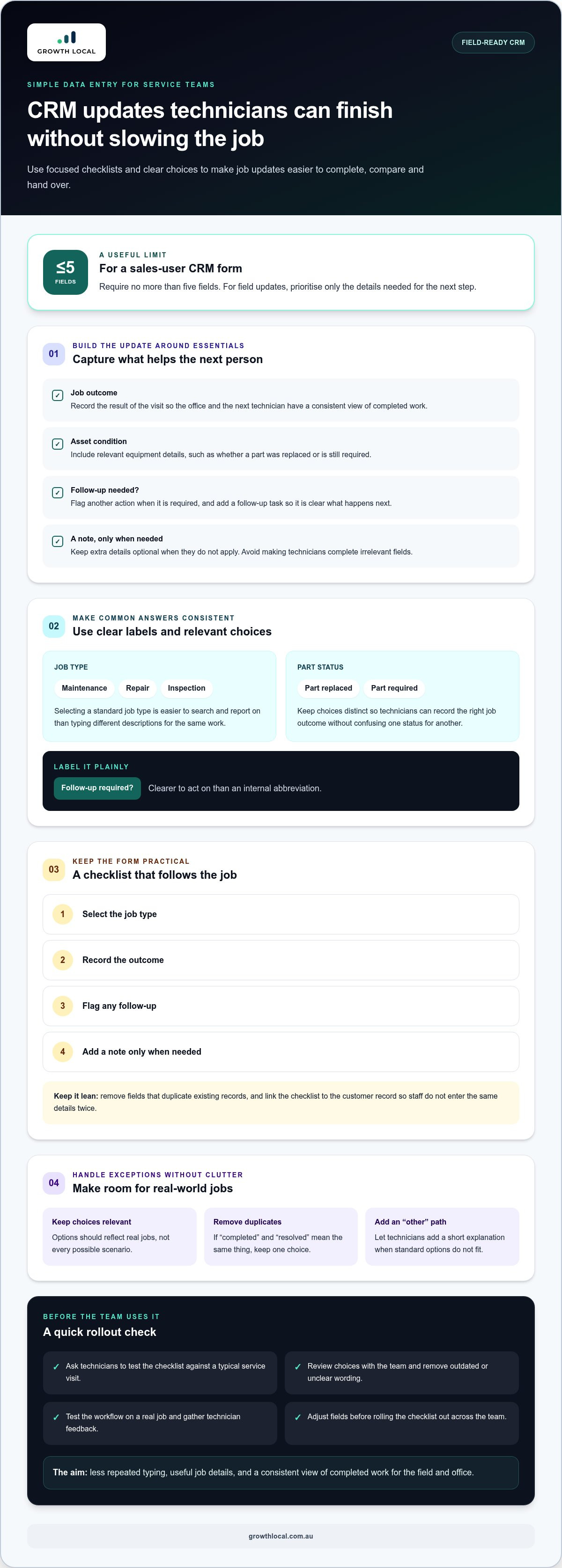
Free-text forms slow technicians down and make records difficult to compare. Checklists can guide each job update, while drop-down menus standardise common answers. For example, a technician can select “maintenance”, “repair” or “inspection” instead of typing different descriptions for the same work. Consistent entries make customer data easier to search, report on and use across the team.
Keep forms focused on details that help with the next step. A sales-user CRM form should require no more than five fields to complete. For field updates, prioritise essentials such as the job outcome, asset condition and whether follow-up is needed. Make other details optional when relevant, rather than requiring technicians to complete fields that don’t apply to the job.
Build the checklist around the work technicians actually do. Ask them to test it against a typical service visit, then remove fields that duplicate existing records. A simple sequence might be: select the job type, record the outcome, flag any follow-up and add a note only when needed. This cuts repeated typing while giving the office a consistent view of completed work.
- Use clear labels: “Follow-up required?” is easier to act on than an internal abbreviation.
- Offer relevant choices: separate “part replaced” from “part required” to avoid confusing job outcomes.
- Include an exception path: let technicians choose “other” and add a short explanation when standard options don’t fit.
Drop-down choices should reflect real jobs, not every possible scenario. Review the options with technicians and remove duplicates, outdated terms and unclear wording. If “completed” and “resolved” mean the same thing, keep one choice. A shorter list helps staff select accurate answers quickly and work efficiently without losing useful detail.
Keep contact data updates simple and accurate. Technicians can add a missing business contact, correct a changed phone number or record a preferred contact method when the customer provides it. Keep the original field clear, distinguish confirmed details from notes, and avoid guessing. A record with a confirmed site contact is more useful than one padded with unverified information.
Set a short data-entry procedure that explains what to capture and when. For example, record the job result before closing the visit, then add a follow-up task if another action is needed. Link the checklist to the customer record so staff don’t have to enter the same details twice. Test the workflow on a real job, gather technician feedback and adjust the fields before rolling it out across the team.
3. Mobile CRM access for field and office teams
A mobile-friendly CRM lets field staff access work information away from the office. Set up a simple mobile view showing each technician’s assigned jobs, relevant customer details and recent updates. Before visiting a site, for example, a technician can check the job notes and confirm the work required. Sales staff can also review customer activity on mobile before a meeting.
Design the mobile workflow around when technicians need it. Before a visit, they open the assigned job. During the visit, they check relevant records. Afterwards, they record the outcome and flag any follow-up. This keeps office staff informed without relying on handwritten notes or a later phone call to explain what happened.
Choose a CRM that works across browsers and devices so staff can access it using the equipment available to them. Test the same workflow on a mobile phone and desktop browser. Check that the job list is readable, key actions are easy to find and notes can be entered without awkward scrolling. Fix any problems before asking the whole team to use it.
- For technicians: make assigned jobs, site details and update fields easy to find.
- For office staff: show recent job progress and follow-up tasks in the same records.
- For sales staff: make customer history available before a call or site meeting.
Mobile access can support field service workflows from job assignment through follow-up. For instance, an office coordinator records a new request and assigns it to a technician, then checks the CRM for the completed job update. A shared workflow helps both teams see what has happened and what still needs attention. It also gives sales staff useful context if a service visit reveals a future opportunity.
Use automation for repeatable handovers, not to add extra steps. A CRM workflow can create a follow-up task when a technician records that another visit is required. The office can then review the task and contact the customer through the appropriate process. Keep the trigger clear, such as a selected “follow-up required” status, so the team knows why the task appeared.
Mobile access won’t help if staff can’t use the CRM on site. Show technicians the essential workflow using a realistic job example, then ask them to complete it on their own device. Note where they hesitate, adjust the layout and test again. This practical rollout helps identify changes that will make it easier for field teams to use the CRM consistently.
4. CRM benefits for contractors and service businesses
A CRM is useful when it makes customer interactions easier to manage, not just easier to record. For a service business, one customer record can connect a service request, completed work, follow-up and sales conversation. Office staff can see what the technician reported, while sales staff can review recent service history before discussing another opportunity. That shared context supports a more consistent customer experience.
Use the CRM to organise customer communications. Contact prompts can show how often a customer has been contacted and what information they’ve received. Before following up, a team member can check whether the customer prefers email, text, phone or social media, then use that preference to guide the next interaction. This helps avoid duplicate messages and tailor communication to the customer’s needs.
Customer self-service can also reduce routine administration. A portal can let customers update their details, create a support request or review an order-information request. For example, a customer who changes their preferred email address can update it directly, while the service team reviews incoming requests in the CRM. Combining this information with job and sales records gives staff a clearer view of the relationship.
CRM records can support business planning and sales forecasts. Reviewing service requests, customer activity and sales outcomes can reveal patterns to consider when planning work. Forecasts are only as useful as the information entered, so managers should explain how technicians’ updates support scheduling, customer follow-up and business decisions.
- Explain the benefit: show how a completed job note can prevent repeated questions during the next customer interaction.
- Recognise useful habits: use badges, leaderboards, rewards or public recognition for consistent, accurate CRM use.
- Lead by example: managers and senior staff should use the CRM in their own work, showing that it supports everyday decisions.
Incentives work best when they reward useful behaviour, not data entry for its own sake. Recognise technicians who record complete job outcomes or help colleagues use the system, and explain the benefit to the customer or team.
Automated contact forms can connect an incoming request to a quick response, a nurture campaign or a workflow. For example, a service enquiry can trigger a response and create a follow-up task for the relevant team. Review workflows regularly to ensure each automation serves a real customer need, rather than creating tasks staff must work around.
5. How to involve technicians in selecting and configuring CRM software?
Technicians are more likely to use a CRM they helped shape. Involve the people handling service visits before choosing features or building forms. Ask them to walk through a recent job, from receiving the booking to recording its outcome. This can reveal practical snags, such as duplicate entry or details that are hard to find on a phone. Involving technicians before configuration is a direct way to improve CRM adoption.
Include representatives from the main user groups during implementation. Start with employees from the groups that will use the system most. In a service business, that could mean technicians, office coordinators and sales staff. Each group can explain what information it needs from the previous team and what it must pass on.
- Technicians: identify the job details they need before, during and after a site visit.
- Office staff: map how bookings, customer requests and follow-ups move through the CRM.
- Sales staff: explain which service outcomes or customer updates help with the next conversation.
Keep the initial configuration focused. Enable the features users need, rather than switching on every available tool. For example, a technician’s home screen might show assigned jobs and a clear way to record outcomes. A manager can access reporting features separately. This keeps daily tasks straightforward while preserving information for oversight.
Write a short CRM procedure with the team. Define what information to capture and when, such as recording a job outcome before closing the work order. Use technician feedback to clarify ambiguous fields and remove repeated steps. A shared procedure gives new starters and existing staff one consistent reference.
Training should continue after launch. Show new hires the core workflow first, then offer refreshers when staff need them or new features are introduced. Keep quick instructions accessible in the team’s usual work resources. Managers who want technicians to use the CRM should use it themselves, showing that it matters in day-to-day work.
Pilot the CRM with technicians before a wider rollout. Ask them to complete a real job workflow, note where they hesitate, then adjust the setup and test again. Review their feedback alongside completed records, looking for missing job outcomes or confusing fields. This turns implementation into a practical improvement cycle rather than a one-off handover.
Growth Local: Lead Generation System Setup
Growth Local can connect lead generation with the CRM workflows your technicians and office team rely on. Its Lead Generation System Setup helps businesses capture enquiries in a more organised way, while CRM Setup can structure customer information and handovers. Marketing System Setup can connect related marketing processes, giving enquiries and follow-up a clearer path through the business.
Consider improving your setup if leads arrive through disconnected channels, staff manually move details between systems, or technicians lack a consistent way to update customer records. The right setup depends on how your team handles enquiries and service work, so start with the handover points causing the most friction.
To discuss a practical system setup for your business, contact Growth Local or visit growthlocal.com.au.
Make CRM adoption part of how the team works
If you’re working out how to get technicians to use CRM software, treat adoption as an ongoing team practice, not a software launch. Set a clear standard for how the CRM supports the work, then give staff room to flag what’s getting in the way. Small improvements based on real feedback can keep the system useful as your business and processes change.
Choose a practical next step: review where information gets lost between an enquiry, a site visit and the next customer interaction. That friction point gives you a clear place to improve the workflow, involve the people who use it and build a process the whole team can follow.
Keep the focus on helping your team do good work. A CRM that earns its place in the daily workflow can support stronger customer relationships as your business grows.
Frequently Asked Questions
How do I implement a CRM?
Start by deciding what the CRM must improve, such as reducing missed follow-ups or clarifying job handovers. Map how an enquiry moves through your business today, then identify where information gets lost or entered twice. Prepare existing records before importing them, and assign someone to manage decisions about fields, access and process changes. Test the setup against real work before making it part of the team’s everyday routine.
What CRM features are most useful for field service technicians?
Prioritise features that help technicians prepare for, carry out and close out work without searching through unrelated screens. Useful options include a searchable job queue, customer and asset history, clear task status and a way to flag follow-up. Role-based access can keep each person’s view relevant. For example, a technician may need job notes and site details, while a coordinator needs visibility across assignments.
What CRM training methods improve technician adoption?
Use short, hands-on training built around familiar jobs instead of a tour of every menu. Ask a technician to practise finding an assigned job, recording an outcome and locating a previous note in a sample record. Pair new users with a confident colleague for practical support, and keep a one-page guide to common tasks. Follow up by asking which step still feels awkward, then address that specific issue.
How to make CRM data entry quick and easy for technicians?
Reduce repeated work by pre-filling details already in the customer record, then ask technicians to add only information that has changed or emerged on site. Set sensible defaults for routine job types, and make the next required action obvious. For example, a completed visit could prompt the technician to record whether another action is needed. Review the form with users and remove fields that don’t support the next decision.
How to roll out CRM software to technicians step by step?
A practical rollout moves from preparation to testing, then wider use. First, document the current job handover and agree what the CRM should improve. Next, tidy key records, configure access and test the workflow with a small group. Fix problems before expanding to the full team. During launch, give staff a clear way to report issues, then review usage and record quality to guide further adjustments.


