

Automated Review Requests After a Completed Service Job
A completed service job is a natural moment to make leaving a review easy. An automated review request system can use a CRM trigger to send a personalised message with a direct review link after a job is marked complete, so customers don’t have to search for where to leave feedback.
Review requests can easily slip through when a team is busy, even after a good customer experience. Automation makes follow-up more consistent: the request goes out at the right point in the customer journey and includes a link to the relevant review platform.
This article explains how review requests work, when to send them and how CRM or job-management triggers can start the process. You’ll also learn how direct links to Google, Facebook, Yelp or an industry-specific platform can make leaving feedback easier, and how a practical system can support local visibility without adding another manual task to the day.
Key Takeaways
- Connect review requests to a completed job, appointment or purchase so customers are prompted without relying on someone to remember.
- Send a clear, personalised request while the customer’s experience is still fresh, and keep any follow-up measured.
- Use a direct link to the right review platform to make leaving feedback straightforward.
- Give every customer the same opportunity to review, and choose platforms that suit how local customers find your business.
- A well-connected CRM and marketing setup can make review collection more consistent and reduce manual follow-up.
What is an automated review request?
An automated review request uses a customer record and a completed-job trigger to send a feedback message. For example, a plumbing business can send a review link when it marks a repair complete in its CRM.
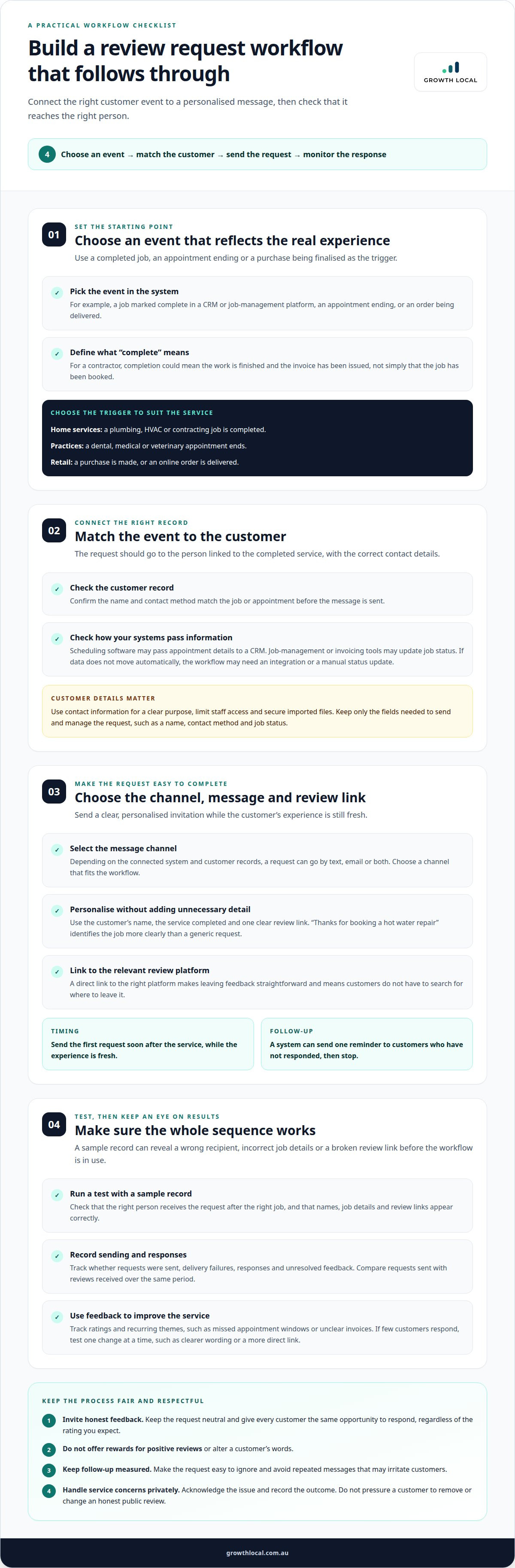
In Australia, keep review requests honest and neutral: invite genuine feedback, don’t offer rewards for positive reviews, and don’t alter a customer’s words. Give every customer the same opportunity to respond, regardless of the rating you expect.
Handle customer details carefully. Use contact information for a clear purpose, limit staff access and secure imported files. An incorrectly addressed message can expose a customer’s details. Keep only the fields needed to send and manage the request, such as a name, contact method and job status.
Automating Customer Review Requests
An automated review request system can send the same message after each eligible job, reducing forgotten requests and manual follow-up. It can also record sending, responses and unresolved feedback. For example, a CRM can show which completed appointments received a Google review link and whether customers responded.
Review management should cover what happens after feedback arrives. Assign a staff member to respond to positive comments and route negative feedback for follow-up. Track themes such as missed appointment windows or unclear invoices, then use those patterns to improve service.
Batch Requests and Customer Imports
Batch sending can help a business invite customers whose jobs were completed before automation was set up. Import only relevant records, such as recent completed jobs with valid contact details, and remove duplicates before sending. An outdated phone number in a spreadsheet could send a private request to the wrong person.
Start with a small test batch. Check that names, job details and review links appear correctly, then send the remaining messages in manageable groups. Keep imported records connected to their source and request status so staff can see who has already been contacted.
Custom Messages and Request Timing
Personalise each message with the customer’s name, the service completed and one clear review link. “Thanks for booking a hot water repair” is more useful than a generic request because it identifies the job without unnecessary detail. Keep the wording respectful and make the request easy to ignore.
Send the first request soon after the service, while the experience is fresh. The system can schedule one reminder for customers who haven’t responded, then stop sending. Set a sensible limit to avoid repeated requests that may irritate customers.
If negative feedback raises a service issue, handle it privately: acknowledge the concern, invite the customer to discuss the job directly and record the outcome. Don’t use private contact to pressure someone to remove or change an honest public review.
Measure results by comparing requests sent with reviews received over the same period. Track delivery failures, response rates, review ratings and recurring feedback themes. If few customers respond, test one change at a time, such as clearer wording or a more direct link.
In Australia, system pricing depends on factors such as message volume, CRM integrations and reporting features. A provider gives a case-specific price after a quote request; compare the functions included, not just the sending capability.
Review request triggers from CRM and job management software
A review request trigger connects a customer action to an automated follow-up. In a CRM, job-management platform or invoicing system, the event might be a job marked complete, an appointment ending or a purchase being finalised.
To set up the workflow, choose the completion event, match it to the customer record, then select the message channel and review link. Test the sequence with a sample record to confirm that the right person receives a request after the right job.
For home services, a completed plumbing, HVAC or contracting job can trigger a request. A dental, medical or veterinary practice can use an appointment-end event instead. Retailers may trigger a message after purchase, while an online store can use an order-delivered event. Choose a trigger that reflects the customer’s actual experience, not simply the moment a record is created.
Scheduling software can pass appointment details to a CRM, while job-management and invoicing tools can update job status. If those systems don’t share data automatically, the workflow may need an integration or a manual status update. Define what “complete” means before setup. For a contractor, that could mean the work is finished and the invoice has been issued, rather than the job merely being booked.
Choose the trigger and channel together. A field-service team might send a text after a technician closes a job; a clinic could email after an appointment. Depending on the system and connected customer records, messages may go by text, email or both. Using both channels can reach customers in more than one way, but the timing and frequency should remain respectful.
When comparing software, look at CRM or scheduling integrations, trigger controls, message customisation, review links, follow-up options and delivery records. Pricing depends on factors such as software features, integrations and message volume, and is provided after a quote request. The right fit is the workflow that reliably records when a request was sent and whether feedback was received, supporting practical reputation management.
Build the workflow in clear stages:
- Select the completed-job or appointment event.
- Match the event to a customer record with the correct contact details.
- Choose the message channel, review destination and follow-up rule.
- Test the trigger, then monitor sent messages and customer responses.
That setup gives staff a clear path from completed work to customer feedback. For help connecting systems into a lead-generation process, explore CRM workflow setup.
Google review links and local SEO visibility
A direct Google review link takes customers to the right place to leave feedback. Without it, they may need to find your business profile, open its reviews and locate the review action. Each extra step can interrupt the process, particularly on a mobile phone after a service appointment.
Australian businesses can automate Google review requests by connecting a customer record to a completed-service trigger, then adding the business’s Google review link to a message. Send it by text or email, with the link taking customers straight to the review page. Google encourages businesses to remind customers to leave reviews.
Reviews can support local visibility, but they don’t replace accurate business information or a useful local presence. Reviews are listed as 9% of local pack ranking factors, and review activity is associated with a 5-10% lift in local rankings. Treat these figures as context, not a promise that a particular rating or review total will secure a position.
Use a direct link to the action you want customers to take. A Google review form link should open the review flow, not just the business homepage. For Facebook or an industry-specific platform, direct customers to the relevant review page. Test each link on a mobile device and desktop browser before adding it to automated messages.
A simple link check helps prevent a broken customer journey:
- Open the Google review link while signed out, and confirm it reaches the intended business.
- Check the action button and review form display properly on a phone.
- Use a separate link for Facebook or another review platform.
- Update messages if a link stops opening the correct review page.
Keep the request neutral. Invite an honest rating from every customer, rather than sending the link only to people expected to leave positive feedback. If a customer posts negative feedback, respond professionally and address the service issue without pressuring them to change their review.
Track link clicks alongside requests sent and reviews received. If customers receive messages but few open the Google review page, check that the link works and the message clearly explains what to do. If they open the page but don’t submit feedback, review the request wording and timing.
A direct review link makes the next step clearer, while local SEO work helps businesses build a broader presence in search. To connect review activity with a considered local strategy, explore local SEO planning.
Review request timing after job completion
Send a review request while the customer’s experience is still fresh. A CRM can schedule the first message after a job is marked complete, then manage reminders and stop conditions.
Request Frequency and Spacing
Set a consistent schedule that gives customers a clear chance to respond without crowding their inbox. One described sequence sends its first message 2 hours after job completion, follows up 24 hours after completion, then sends a final reminder 7 days after completion.
Those intervals are examples, not rules for every business. A home repair customer may appreciate a prompt request after the technician leaves, while a complex project may need time for the finished result to become clear. Review the service journey and choose intervals that fit the customer’s experience.
Requests sent within 2-4 hours of completing a job are recommended in the timing guidance. Another recommendation is to ask within a few days of the interaction. Use the job type, customer expectations and message channel to set a practical window.
Resend and Interaction Filters
Use the CRM’s response status to decide whether a reminder should go out. If a customer has already submitted a review, suppress the next message; if no response is recorded, one scheduled reminder can provide another opportunity. Check that the system records replies promptly so customers don’t receive a follow-up after responding.
Filters can also prevent requests after cancelled appointments, incomplete jobs or duplicate records. For example, a plumber’s CRM should trigger only when the job status changes to completed, not when a booking is created. If the customer reports an unresolved issue, route that feedback to a staff member instead of continuing the reminder sequence.
Keep the process respectful. Repeated messages can frustrate customers and prompt negative feedback, so set a limit and stop sending after the final reminder. Apply the same request schedule to all customers rather than selecting people based on their expected rating. Consistent rules make review management easier to audit and maintain.
To refine timing, compare requests sent with responses received for each interval and channel. If a reminder adds few responses but creates complaints, remove it or adjust the gap. Track completed jobs, successful deliveries, replies and reviews together so changes improve the whole workflow, not just one metric.
Before activating a schedule, test it with a sample customer record. Confirm the completion trigger, message timing, reminder condition and stop rule. Then review the first live sends to catch duplicate messages or requests triggered by the wrong job status. A simple, consistent schedule helps businesses ask at a useful moment without turning follow-up into pressure.
Google, Yelp, Facebook and industry-specific review platforms
Review platforms reach different audiences, so the right destination depends on where customers look for your type of service. Choose the platform first, then make sure the request workflow sends customers to the right place.
There isn’t one best automated review platform for every Australian business. Compare platform support, CRM connections, message options and reporting with your customers’ habits.
Supported Review Platforms
Google can suit a local service business that wants customers to find its profile in Search or Maps. Facebook may fit businesses that already communicate with customers there, while Yelp is another review destination to consider. A specialist platform may be more relevant to a particular profession or service category.
Check that the system sends each customer to the intended review page. For example, a clinic might direct an appointment follow-up to its chosen industry platform, while a local tradie may use Google. Don’t assume every tool supports every destination.
Comparing Automated Review Platforms
Compare what each platform can do in your workflow, not just its list of supported sites. Check whether it connects with your CRM, triggers a request after a completed appointment, sends messages through your preferred channels and shows which requests received a response.
Also consider how the system handles platform rules. Businesses selling through marketplaces such as Amazon should use request tools that follow that marketplace’s review and feedback requirements. Consistent sending is useful only when the process suits the review destination.
Keep review requests neutral and give customers a genuine choice. Ask every eligible customer, not only those expected to leave positive feedback. If someone shares negative feedback, respond professionally and address the concern without trying to steer or suppress an honest review.
Automating requests can reduce the need for staff to remember every follow-up after a job or appointment. Sending by both text and email may get more responses than using either channel alone, but the workflow should avoid repeated contact. Make clear where the link leads and what action the customer can take.
Measure performance by platform. Compare requests sent, responses received and feedback across Google, Facebook, Yelp or a specialist site. If one destination brings useful customer feedback while another gets little engagement, adjust the routing to suit your business goals and customer interactions. Don’t judge performance by rating alone; recurring comments can point to practical service improvements.
For a marketplace or industry platform, test the customer journey before activating the workflow. Confirm that the right platform opens, the review action is clear and staff can see whether a request was sent. This keeps reputation management consistent without requiring employees to manage every message manually.
Growth Local
Growth Local helps businesses connect customer records, completed jobs and follow-up workflows. If review requests are still sent manually, CRM Setup can organise the trigger, customer details and messaging process in one system.
For businesses already using several tools, Marketing System Setup can help align the customer journey, from completed service to review invitation. Start by mapping where job data lives, which event should trigger a request and how the team will manage responses. That gives the workflow a clear purpose without unnecessary steps.
If you’d like help planning a setup that fits your business, contact Growth Local.
Turn customer feedback into your next improvement
Make the next step operational. Decide who will review incoming feedback, how useful themes will reach the people doing the work and which changes your team can act on. This connects customer reviews to service improvement, rather than treating them as a count to collect.
An automated review request system can be part of a wider customer journey. Growth Local offers Lead Generation System Setup, CRM Setup and Marketing System Setup to help organise the systems and hand-offs behind that journey. Consider how review activity fits with customer records and follow-up so the process stays manageable as your business grows.
Start with the workflow your team needs, then build around it. A clear process gives staff a practical way to learn from feedback and keep improving.
Better systems start with a useful first conversation.
Frequently Asked Questions
Is it against Google's terms to ask for reviews?
No. Google encourages businesses to remind customers to leave reviews, so a neutral invitation is appropriate. Ask for an honest account of the customer’s experience, not a particular rating. Avoid offering rewards or sending requests only to customers expected to be positive. For example, include the same review invitation in the standard follow-up process, whether a customer has shared praise or raised a concern.
What is an automated review request system and how does it work?
An automated review request system uses customer and transaction information to manage review invitations through software. For example, a service business can connect a completed-job record to a message template and review destination. The system logs each request, making delivery issues and feedback easier to track. Staff still need a process for reading responses and addressing service concerns: automation handles routine sending, not the customer relationship.
How do review request systems integrate with CRM, POS and booking software?
These systems connect through a built-in integration or a data exchange that passes events and customer records between platforms. For example, a point-of-sale system can record a completed purchase, while a booking tool can signal that an appointment has ended. The CRM can then match the event to a contact record. Clear field mapping matters: a cancelled booking must not be treated as a completed appointment.
When should businesses send automated review requests after a purchase or service?
Send the invitation after the customer has experienced the completed purchase or service, while the interaction is still easy to recall. For an online order, wait until delivery rather than sending a request immediately after checkout. For a service business, consider whether the customer needs time to see the finished result. The right moment depends on the service and customer experience, not simply the software’s default schedule.
How can businesses avoid fake, incentivised or biased reviews when automating requests?
Keep the process open and impartial: invite genuine customers, request honest feedback, and don’t tie a reward to a review or its rating. Don’t use a survey to send only satisfied customers to a public review page while diverting unhappy customers elsewhere. For example, use one standard invitation for completed jobs and let customers decide whether to post. Staff should never write reviews on customers’ behalf or alter their feedback.


