

Automated job booking system for Australian trades and field services
Yes. An automated job booking system in Australia can update schedules in real time when it connects to live availability and the calendars your team uses. New bookings and appointment changes can then flow through the schedule, helping prevent double bookings and reducing manual updates.
The practical difference is that customers can book an available time while your team sees what’s booked and what has changed. The system still needs to reflect your services, staff and scheduling rules, so the times shown to customers match how your business operates.
This guide explains how bookings, calendar syncing, changes and reminders work together, and how job management can take an appointment from enquiry through to payment. You’ll also learn what to consider when choosing a setup for an Australian trade or field service business, so you can reduce admin without losing control of the work.
Key Takeaways
- See how live availability and calendar syncing help keep bookings aligned with your team’s schedule.
- Learn how automated confirmations, reminders and rescheduling can cut down on appointment admin.
- Follow the job management process from the first enquiry through quoting, invoicing and payment.
- Understand what affects job booking software costs and which setup factors matter for your business.
- Find out how connected lead generation, CRM and marketing systems can support a smoother booking process.
Automated appointment bookings, changes and cancellations
An automated booking process lets customers choose an available appointment and records changes against the job. For a field service business, each booking can capture the address, job type and preferred time.
Compared with manual booking, automation can reduce back-and-forth and keep appointment details together. Manual booking offers direct control, but staff must update each calendar and notify everyone themselves.
Common risks include duplicate calendar entries, incorrect service details and missed notifications. Clear integrations, accurate availability rules and a record of each change help reduce these problems.
Booking changes and cancellations
Customers can use a booking link to change or cancel an appointment, subject to your settings. The system should update the booking record and make the slot available again. For example, if a customer moves a plumbing visit from morning to afternoon, the original slot should no longer appear as booked.
Check how the system handles cut-off rules, unavailable times and incomplete changes. A clear confirmation after each update helps the customer and assigned team member see which appointment is current.
Staff and customer notifications
When a customer books or changes a visit, automated notifications can send relevant details to both parties. A customer confirmation might include the selected time and service address, while the staff alert can include the job type and preparation notes.
Check which events trigger a message, such as a new booking, cancellation or reschedule. Staff should also be able to find the latest booking record easily, rather than searching through separate messages.
Reminders and waitlist callbacks
Appointment reminders give customers another prompt before a scheduled visit. A system can send a reminder using the contact details recorded at booking, then capture a response or direct the customer to a change link.
For a waitlist callback, the system can record customers seeking an earlier appointment. When a suitable time opens, staff can contact the next suitable person and update the booking once accepted. Matching by job type, location or availability makes the callback more useful than a general message.
Cancelled appointment waitlists
A cancellation creates an open slot that might otherwise go unused. A waitlist can help fill it by identifying customers who want an earlier appointment and match the job’s location, service and timing.
Set a clear process for offering the slot, recording the response and updating the schedule. For example, if one customer declines, staff can move on to another suitable waitlist member. The system should show when the opening is filled, so the team doesn’t book two jobs into the same time.
For invoicing after completed work, Australian Taxation Office guidance states that Australian tax invoices include 10% GST. Keeping the booking and job record connected makes the transition from appointment to invoice clearer.
Availability checks and multi-calendar synchronisation
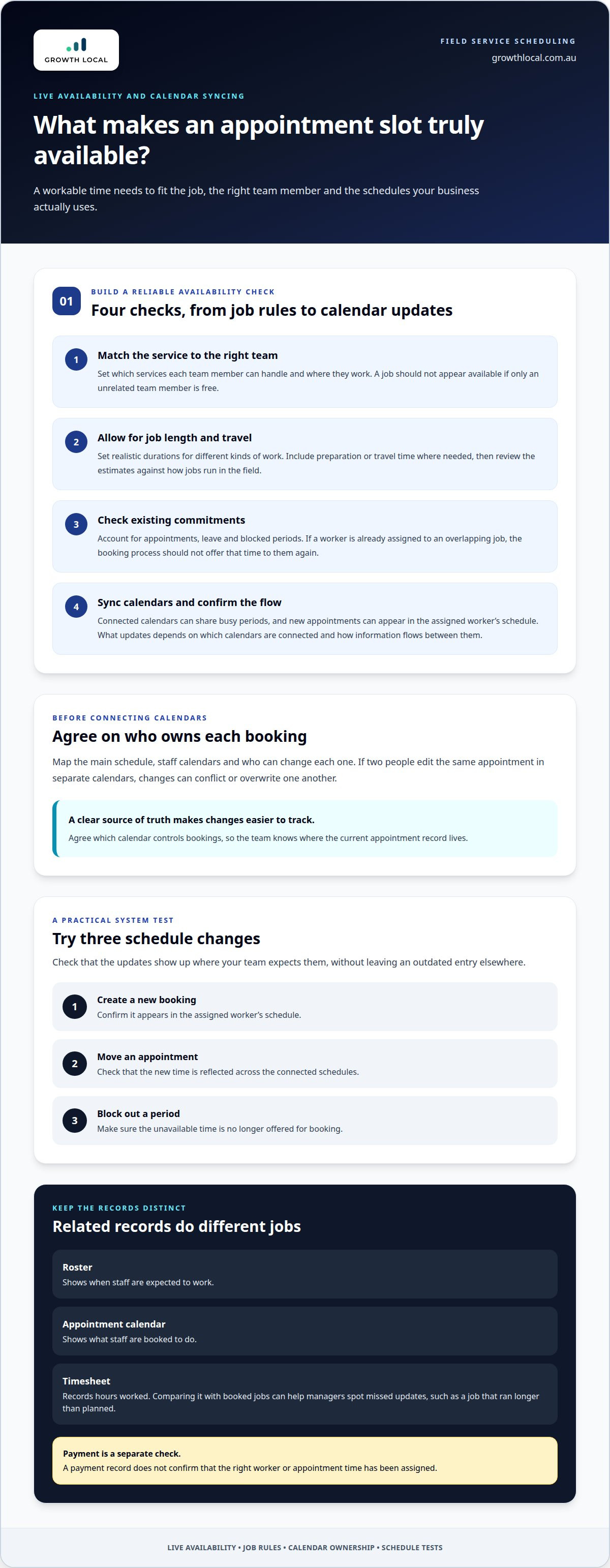
Live availability depends on more than an empty time slot. A booking system needs current staff schedules, job duration and travel requirements to show workable appointment options.
How availability checks work
Start by defining which services each team member can handle and where they work. The system can use those rules alongside the calendar to show suitable times. For example, an electrical job requiring a particular crew shouldn’t appear available when only an unrelated team member is free.
Job length matters too. A short inspection and a larger repair shouldn’t automatically block the same amount of time. Set realistic durations, include preparation or travel time where needed, and review them against how jobs run in the field.
Availability should also account for existing appointments, leave and blocked periods. If a staff member is already assigned to a job, the booking process shouldn’t offer that person another appointment during an overlapping slot.
Staff availability and calendar syncing
Calendar synchronisation helps keep bookings aligned across the tools staff use to manage their day. A connected calendar can share busy periods with the booking system, while new appointments can appear in the assigned worker’s schedule. The result depends on which calendars are connected and how information flows between them.
Map the booking process before connecting calendars: identify the main schedule, staff calendars and who can change each one. Then test a new booking, a moved appointment and a blocked period. Confirm that each update appears where the team expects it and that a change in one place doesn’t leave an outdated entry elsewhere.
Clear ownership matters. If two team members can edit the same appointment in separate calendars, their changes may conflict or overwrite one another. Agreeing which calendar controls bookings makes changes easier to track.
Rostering, availability and timesheets
Rosters show when staff are expected to work; appointment calendars show what they’re booked to do. Keep these records connected where the software allows, so a day off or non-working period isn’t treated as available. A roster change should prompt a review of affected appointments and assignments.
Timesheets provide another record of hours worked. Comparing booked jobs with timesheet entries can help managers spot missed updates, such as a job that ran longer than planned. This doesn’t replace reviewing the work record, but it gives the business a clearer view of schedule changes and workload.
If you use a credit card payment step, treat it separately from staff availability. A payment record doesn’t confirm that the right worker or time has been assigned.
A practical system walkthrough can show how these scheduling steps fit together before you set up your workflow.
Automated confirmations, reminders and rescheduling
Once a booking is made, confirmation messages give customers a written record of the agreed service, address and appointment window. Make the message specific: for a roof inspection, include the property address and access notes, not just a generic booking reference. A clear record helps prevent confusion when customers have multiple appointments or contact the business later.
Set up reminders around useful events, such as an upcoming visit or a change to its scheduled time. Each message should identify the job and explain what the customer needs to do next. For example, a reminder can ask them to confirm access instructions or use the rescheduling option if they’ll be unavailable. Accurate contact details and clear wording matter more than sending extra messages.
Rescheduling should update the appointment record, not just send a new message. When a customer needs to move a visit at short notice, the system should capture the new time and make the previous appointment’s status clear. Staff can then work from the current schedule instead of relying on an old text or email. A useful workflow also records who requested the change and any new job notes.
Before enabling automatic messages, map the events that should trigger them. A new booking, a customer-requested change and a staff update may each need different wording. Test each event with a sample appointment, then confirm that the customer-facing message and staff record match. If an update fails, a defined staff follow-up process helps prevent the customer from receiving outdated details.
Keep appointment reminders separate from invoice reminders. A visit confirmation concerns when and where work is scheduled; an invoice message concerns payment after work is completed. Mixing the two can confuse a customer who has booked a job but hasn’t received an invoice. If a booking requires no credit card, state that clearly in the booking instructions rather than leaving customers to guess.
Review message content when services or booking steps change. For instance, if a job now requires a gate code, add a prompt for that detail before the appointment. This small adjustment can give the field team more useful information and reduce follow-up calls.
A short workflow walkthrough can help map booking events, message wording and rescheduling records before launch. Discuss your booking workflow to see how these steps can fit together.
Job management from enquiry to payment
An end-to-end workflow connects an enquiry to a completed job, invoice and payment record. Set the system’s time zone to the business’s operating location, then make sure bookings, staff schedules and customer messages use that same setting. Australian tax invoices include 10% GST, according to the Australian Taxation Office. Payment handling depends on the configured payment methods and the business’s invoicing process.
Start with the enquiry. Capture the customer’s contact details, job address, requested service and useful notes in one record. For example, a blocked drain enquiry can include access details and a description of the problem. A staff member can then assess the request, prepare a quote and update the record as it progresses.
Quoting is a common admin bottleneck. With the right setup, a quote that takes 45-60 minutes can be reduced to 10-15 minutes, and an AI-assisted quote can be prepared in 10-15 minutes. The system can assemble the relevant job information and draft a quote for review. Staff still need to check the scope, assumptions and final amount before sending it.
After approval, convert the quote into a job and assign it to the right worker. Keep the appointment, job notes and customer record connected. A mobile workflow lets field staff open the job details, record progress and update the status onsite. Office staff can then see whether the work is scheduled, underway or complete.
Once work is finished, use the job record to prepare the invoice and track its status. The invoice should reflect the agreed work and applicable GST treatment. If the business accepts a deposit or advance payment, record it against the job so the final account reflects it. Keep payment confirmation connected to the invoice instead of relying on a separate message or spreadsheet.
Close the job only after its key records are in place: completed work, customer communication, invoice and payment status. This creates a clearer trail if a customer asks about a charge or the team needs to revisit the work. A defined process also makes it easier to see where a job is waiting, such as quote approval, onsite completion or payment.
When assessing software costs, consider how well the workflow connects enquiry management, job records, invoicing and payment tracking. A cheaper tool that requires staff to re-enter details can add admin at each handover. The best fit is the system that supports the steps your team actually uses, from the first customer request through to a properly recorded payment.
How much do job booking systems cost in Australia?
That range gives a starting point, not a like-for-like comparison. The final amount depends on what the plan includes, how many people need access and whether extra setup or integrations are required.
Start by listing the tasks your business needs the software to handle. A solo plumber may need customer records, booking and job updates. A team with office staff and field technicians may also need shared schedules, quoting, invoicing and reporting. Compare plans against those actual tasks, rather than paying for features your workflow won’t use.
Check how the provider counts users. Some plans charge for each person with a login, while others distinguish between field staff and office roles. Ask how part-time workers, administrators and additional team members affect the total. A clear user count makes software costs easier to compare with your current workflow.
Then review setup requirements. Moving customer and job records from spreadsheets, configuring services and connecting calendars can take staff time. Accounting integrations may also need configuring and testing. Include this work in your budget alongside any ongoing subscription, rather than considering only the first invoice.
Payment processing is another separate item to understand. If customers pay by card, check how the software records transactions and whether processing has its own charges. Don’t assume the booking subscription includes every payment-related feature. For example, a business taking deposits may need a different workflow from one that invoices only after completing the job.
To compare options, use the same checklist for each plan:
- Which booking, job and customer-management features are included?
- How are users counted as the team changes?
- What setup, data transfer or integration work is involved?
- Are invoicing and payment functions part of the plan or separate?
- Can the system support your current process without duplicate entry?
A low per-user figure may not offer the best value if staff must keep separate records. A higher plan may suit a business that uses its included features every day. Compare the complete workflow and the admin it requires, not just the headline subscription amount.
For a system tailored to your needs, the price depends on the setup required and is provided after a quote request. Key cost factors include the workflows, integrations and configuration involved.
Growth Local
Growth Local can connect the systems around your booking process, from capturing enquiries to organising customer information and follow-up. If enquiries are slipping through the cracks, Lead Generation System Setup and an AI Receptionist can support lead capture. CRM Setup and Marketing System Setup can help organise customer records and communications that move prospects towards a booking.
Turn to Growth Local when manual handovers between enquiries, customer records and follow-up are creating extra admin. Growth Local builds practical setups around how your business handles leads and customer information, rather than adding tools without a clear role.
Contact Growth Local to discuss your workflow
Make your next booking workflow easier to manage
Start by deciding what a better booking process needs to achieve for your team. Identify the handover causing the most friction, such as turning an enquiry into a confirmed job, then define what staff and customers need to see at that point.
To assess an automated job booking system in Australia, ask whether it fits the way your business operates and lets your team keep records current without extra manual steps. A clear starting point also makes conversations about your workflow more useful. Growth Local offers Lead Generation System Setup, CRM Setup and Marketing System Setup to support connected customer processes.
You don’t need to redesign every process at once. Start with the booking-related task that takes attention away from running jobs, then plan the next improvement around what your team needs.
A more organised process can give your team a clearer path from customer enquiry to scheduled work. Take the next step when you’re ready.
Frequently Asked Questions
Are job schedules updated in real time?
They can, if the booking system and connected calendars share updates promptly. For example, when a dispatcher assigns an urgent repair, the schedule should show the worker’s new commitment before another customer books the same slot. The result depends on the software’s integrations and settings. Test it with a sample booking, change the appointment, and confirm the update appears in each relevant schedule.
Can jobs be scheduled for longer than a day?
Yes, a system can represent longer work as a multi-day booking or linked job stages. For example, a renovation might need separate entries for preparation, installation and a return visit. The right structure depends on how the team allocates workers, materials and access. Give each stage a clear status and assigned staff, so a long job doesn’t appear finished after its first visit.
How do you set appointments?
First, capture the customer’s details, job address and required service. Next, find a suitable available time and assign an appropriate staff member. Record access instructions and other relevant notes with the appointment. For example, a service call at a tenanted property may need the tenant’s contact details as well as the owner’s. Confirm the final time and job details with the customer.
What is an automated job booking system for Australian businesses?
An automated job booking system in Australia is software that helps a business receive appointment requests and organise them into a work schedule. Depending on its configuration, it can support booking changes, staff allocation and customer communications. A gardening business, for instance, could use a booking form to collect the property address and service type before staff plan the visit. The software helps organise the workflow, while the business defines its rules.
Which automated job booking software is popular in Australia?
No single software option suits every Australian trade. A mobile maintenance team may prioritise assigning jobs in the field, while a small operator may value straightforward customer records and scheduling. Instead of choosing by popularity alone, compare how each option handles your services, staff permissions and existing business tools. A practical trial using a typical job can show whether the workflow fits.
What features should an Australian job booking system include?
Look for features that match how your business books and completes work. Useful capabilities can include customer and job records, staff assignment, appointment updates, reminders and reporting. For a business with several service types, configurable job details can help staff capture the right information at booking. Consider access controls too, so team members see the information needed for their roles without changing unrelated records.
How do job booking systems integrate with accounting, CRM, and calendar software?
Integrations pass selected information between systems, such as customer details, appointment times or completed-job status. Clear field matching is essential: for example, the customer name in the booking record should map to the correct CRM contact. Accounting connections can transfer invoice details, while calendar links share schedule events. Test each connection with a sample record and check how edits, duplicates and failed transfers are handled.
How can a business set up an automated job booking system?
Begin by mapping how a booking moves through your business, from the first request to job completion. Decide which details customers provide, which jobs need staff review and who can change an appointment. Then configure services, availability rules and message triggers. Test common situations, including a new request, a cancellation and a job that needs reassignment. Train staff with those examples before moving everyday bookings into the system.


